
A student enters the Path phase after selecting the required number of skills from the Selection Wheel. Once the correct number of skills is selected, the Path becomes visible and accessible.
Before You Begin
Ensure the student has access to TUMO World
Confirm that the student has selected the required number of skills and can see their Path.
Overview of the Path
This article provides a general overview of the Path phase.
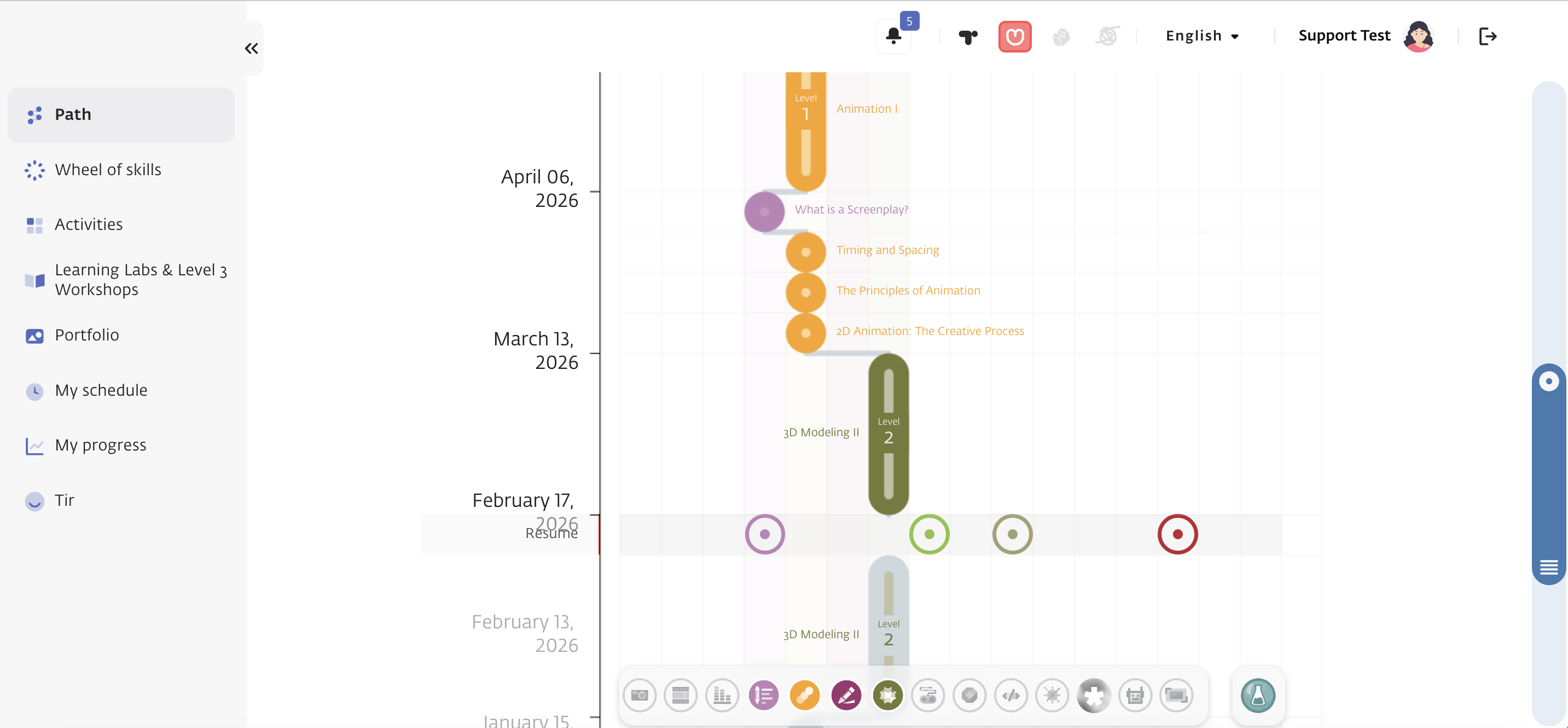
In the Path view (see screenshot), students can:
- Complete Prerequisite activities
- View their Upcoming or Ongoing Workshops
- Register for Special Workshops
Self-Learning Circle (Activity)
Each circle displayed in the Path represents a Prerequisite activity for a specific workshop.
Activities may have the following statuses:
Open – The student has not answered any questions yet.
Resume – The student has answered at least one question and clicked Save The Answer.
Examining – The student has completed all questions and clicked Sent For Examination.
Awarded – All answers are correct.
Review – At least one answer is incorrect.
Locked – The activity has a prerequisite and is not yet accessible.
Important Tip: When a student submits an activity for Examination, the next Locked activity automatically becomes unlocked. This allows the student to continue working without delay. However, if the submitted activity is rejected (Review status), the next activity will return to Locked status.
Workshop (Workshop/Event)
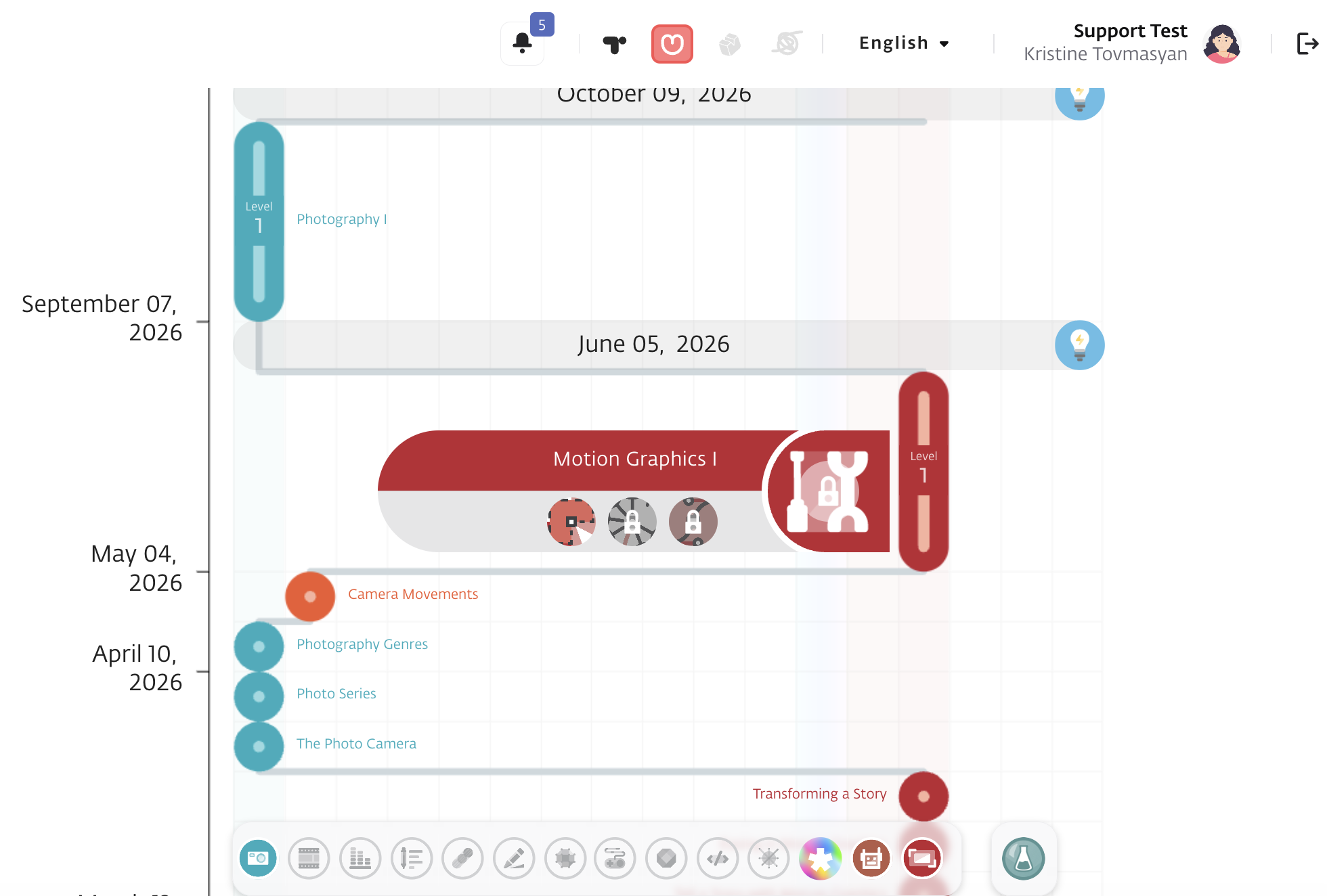
Workshops appear as oval shapes in the Path.
Important Tip: Each Workshop has at least two prerequisite activities.
To subscribe to a workshop, the student must receive Awarded status for all related prerequisite activities.
By hovering over a workshop, the student can view all prerequisite activities required for that workshop.
Each skill includes two workshop levels: Level 1 and Level 2.
Accordingly, each prerequisite activity is labeled to indicate its corresponding workshop level.
Alternative Workshops
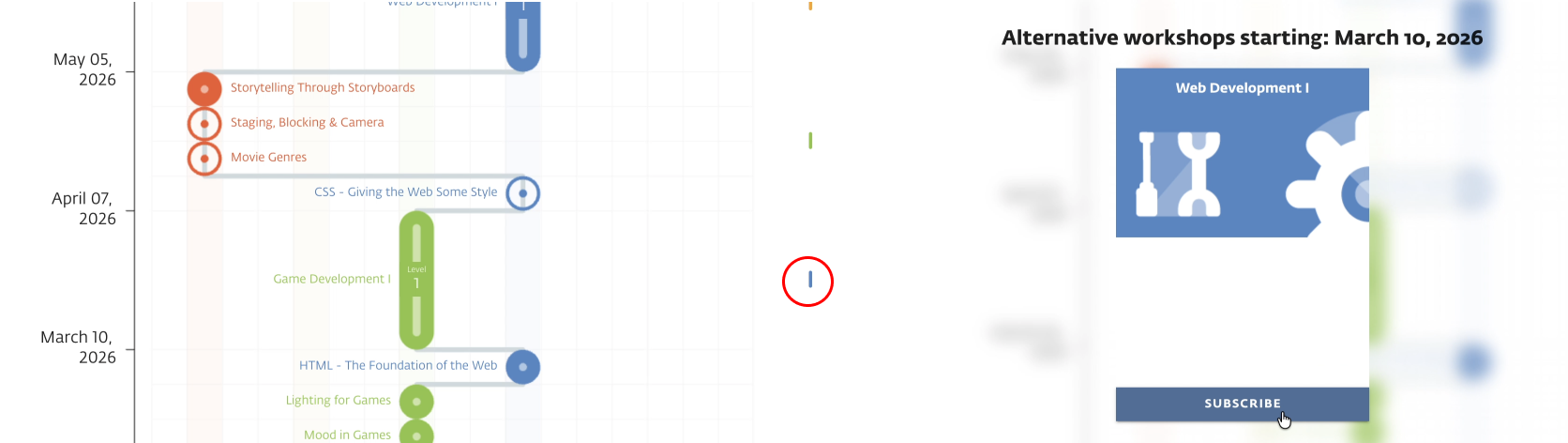
In some cases, students may be offered multiple workshop options at the same time.
For example, a student may be scheduled for Game Development Level 1, but have the option to switch to Web Development Level 1 instead.
To view the workshop details, simply click on the workshop. Then select Subscribe for your preferred option.
Profile Area
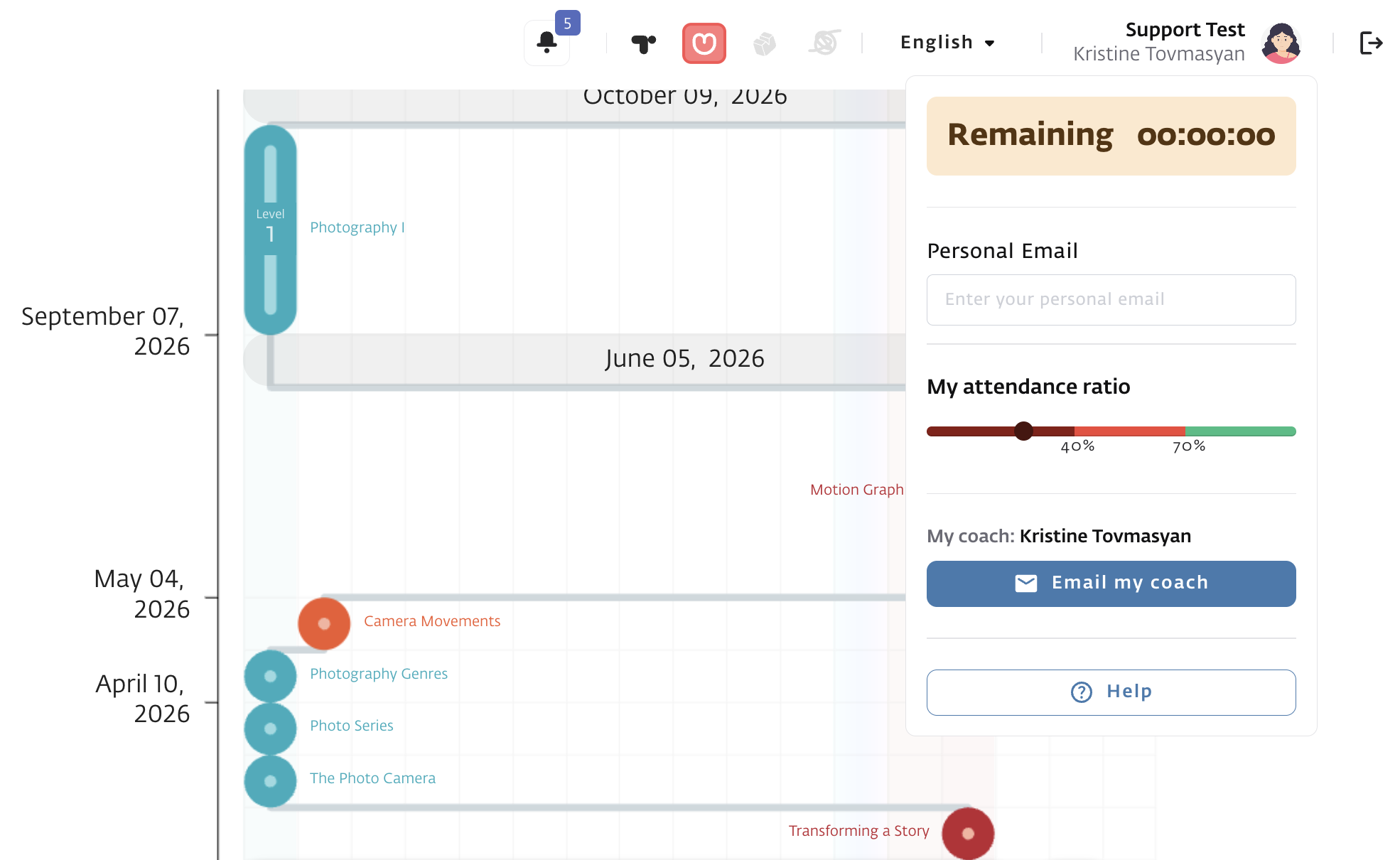
In the upper-right corner of the screen, the student can see their name, surname, and profile picture. Clicking on it opens a dropdown menu.
The menu includes:
Remaining – Displays how many minutes remain until the end of the main class session.
Personal Email – Add, view, or edit a personal email address.
My Attendance Ratio – Attendance percentage for the last 4 weeks (0–40%, 40–70%, 70–100%).
My Coach – Displays the name of the assigned coach and allows the student to send them an email.
Help – Provides tutorials (e.g., how to change language settings, take screenshots, or save files to Drive).
Logout