

Overview
The Schedule page assigns and manages a student's self-learning sessions. It shows the recurring weekly sessions a student is enrolled in, plus any one-time extra sessions, if assigned.
Using this page, staff can:
- View assigned self-learning sessions
- Assign or update regular sessions
- Remove assigned sessions
- Add, edit, or delete one-time sessions
- Review schedule change history
Attach or edit a regular schedule
- Click Attach or Edit to enter session selection mode.
- All available weekly sessions are displayed. If the student already has assigned sessions, those sessions are highlighted.
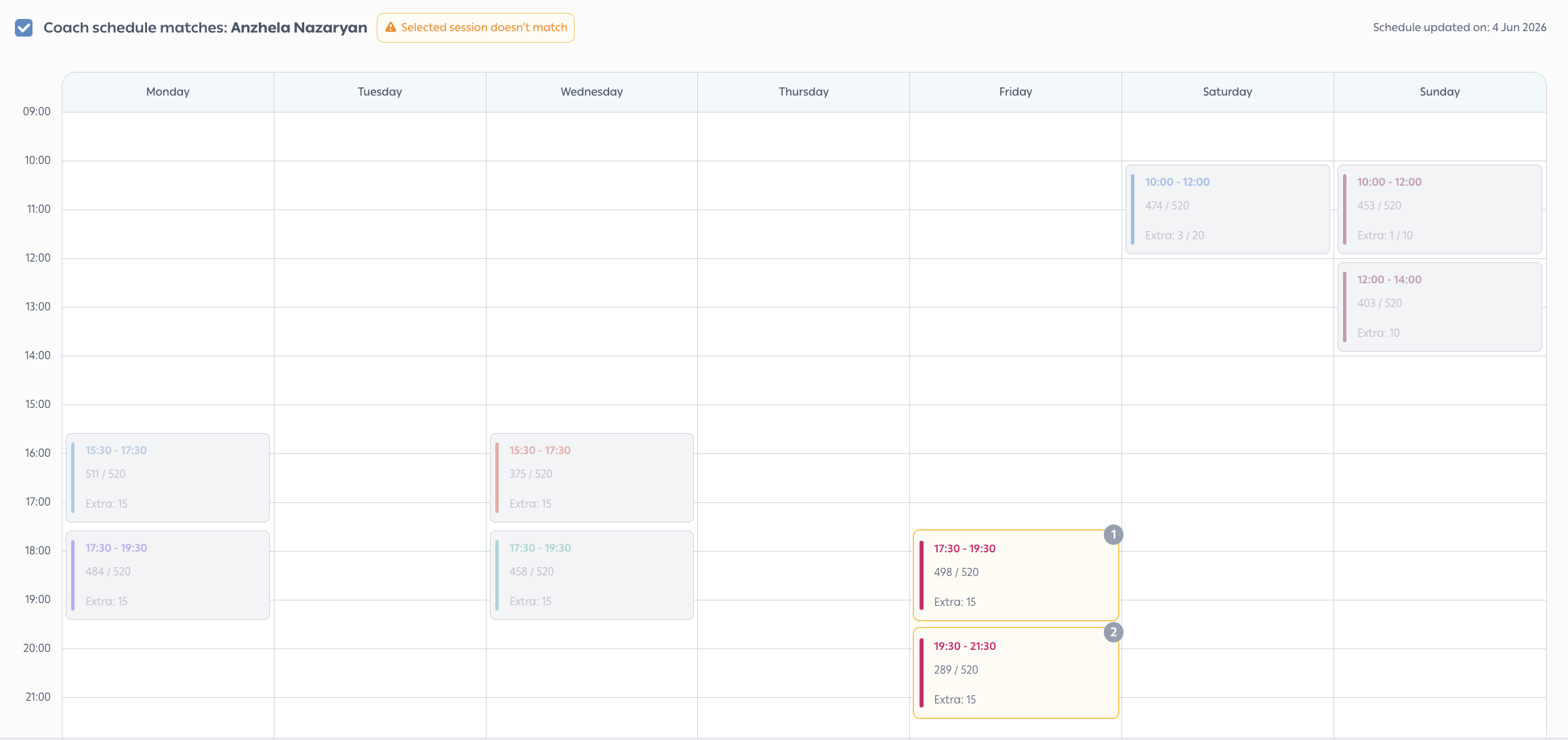
- Click a session block to select it. Selected sessions display a numeric order indicator (1 or 2).
- To remove a selected session, click it again.
- When the first session is selected, the system highlights its predefined pair with an animation to support consistent schedule assignment.
Note: The highlighted paired session is only a recommendation. Staff are not required to select it and may choose any other eligible session instead.
- Click Done to save the schedule.
- Click Cancel to exit without saving changes.
Remove a regular session
- Hover over a session block and click the delete icon
- Confirmation is required before removal
Filtering by the assigned coach's schedule
In edit mode (and on the no-schedule view), a checkbox labelled “Sessions matching Coach’s schedule” helps you find sessions aligned with the student's assigned coach.
One-time sessions
A one-time (extra) session is a single-use booking that lets a student attend a session outside their regular weekly schedule. One-time sessions apply only to a specific date and do not create an ongoing weekly attendance pattern.
Add a one-time session
- Click Add One-Time Session.
- The system displays all available weekly sessions for the student's location.
- The student's regularly assigned sessions are not available for selection, as one-time sessions can only be created for sessions outside the student's regular schedule.
- Select the session the student should attend.
- Choose the specific date for the reservation.
- Click Done to save or Cancel to discard the changes.
Editing or removing a one-time session
Staff can update or remove a one-time session before it takes place.
View history
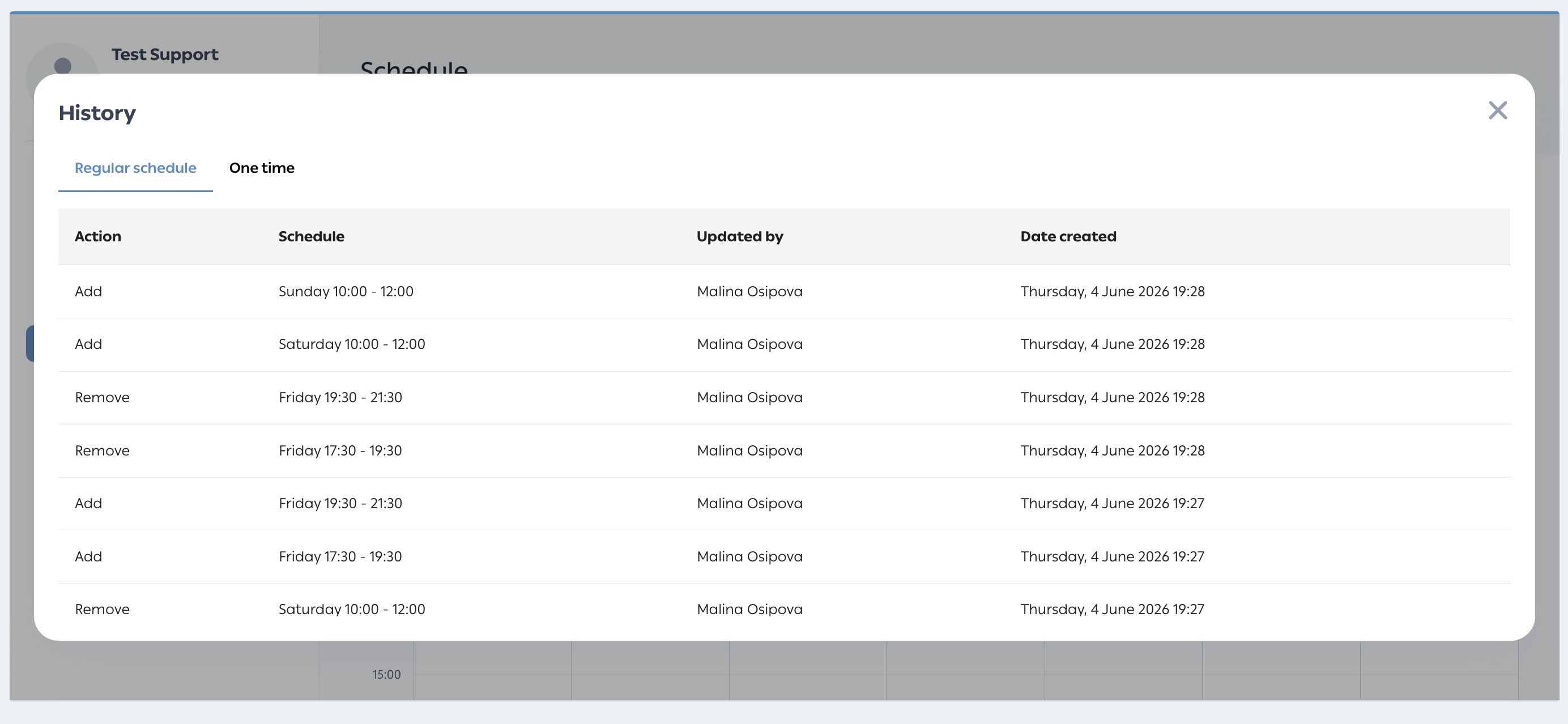
- A History section logs all schedule changes
- Separate tabs for Regular and One-time sessions
- Each record shows what was changed, who made the change, and when
Handling common Issues
No other frequent issues have been identified for this workflow. If you encounter any problem, please contact TUMO Product Support.
See also
Self-Learning Schedule Management