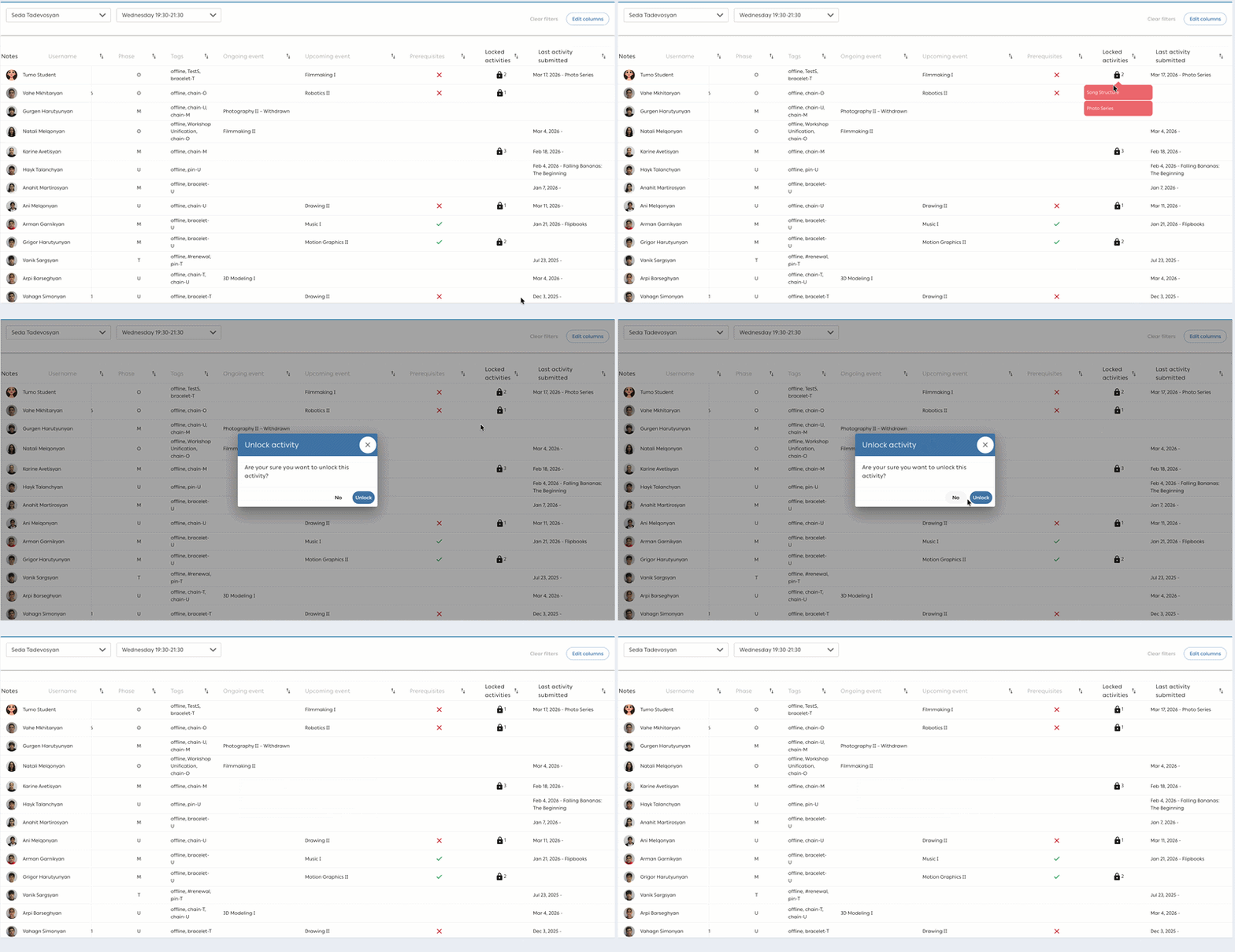
 To better support learners and encourage timely collaboration with coaches, an activity lock mechanism has been introduced. This feature helps identify when a learner is repeatedly struggling with the same activity and ensures that additional guidance is provided before further attempts are made.
Below is an overview of how the activity lock mechanisms is managed.
Second rejection
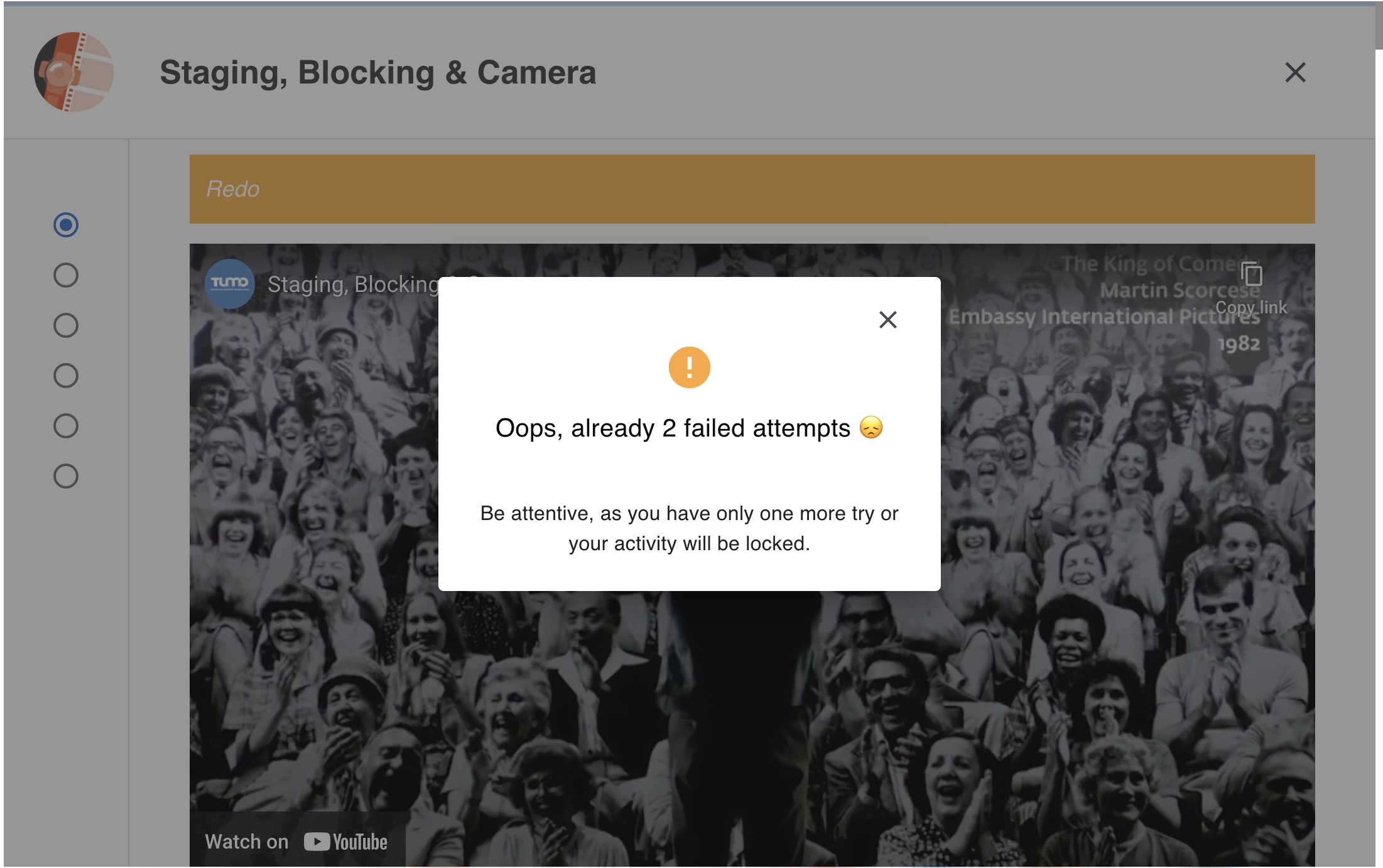
- After the second rejection, a warning pop-up appears when the learner opens the activity.
- The message informs the learner that only one attempt remains before the activity is locked.
- The learner can close the message and submit again.
Third and Subsequent Attempts
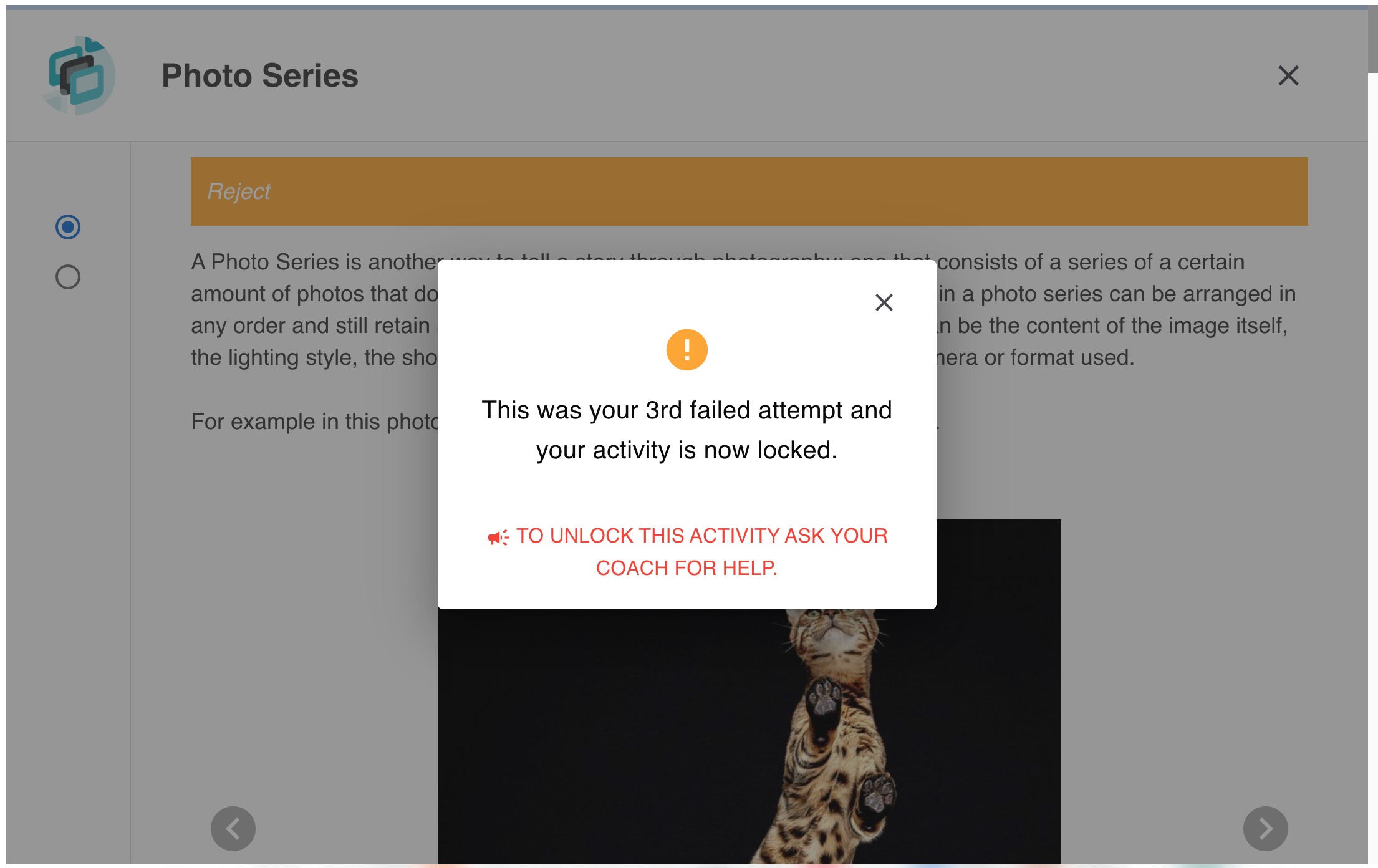
- After the third and every subsequent rejection, the activity becomes locked.
- A pop-up informs the learner that the activity is locked and cannot be resubmitted.
- The learner must contact their coach for assistance.
Coach visibility and management
Coaches can identify and manage locked activities through the following tools:
- Coach Tool – Locked activities are displayed per student and grouped. If a learner has one or more locked activities, a lock icon with a counter (e.g.,
 2) appears next to the learner.
Hovering over the icon shows the list of specific locked activities.
See more about Coach Tool here. - Activity Manager → Examination list - The locked status is shown for each activity submission. Each locked activity is marked in the “Locked” column with a lock icon.