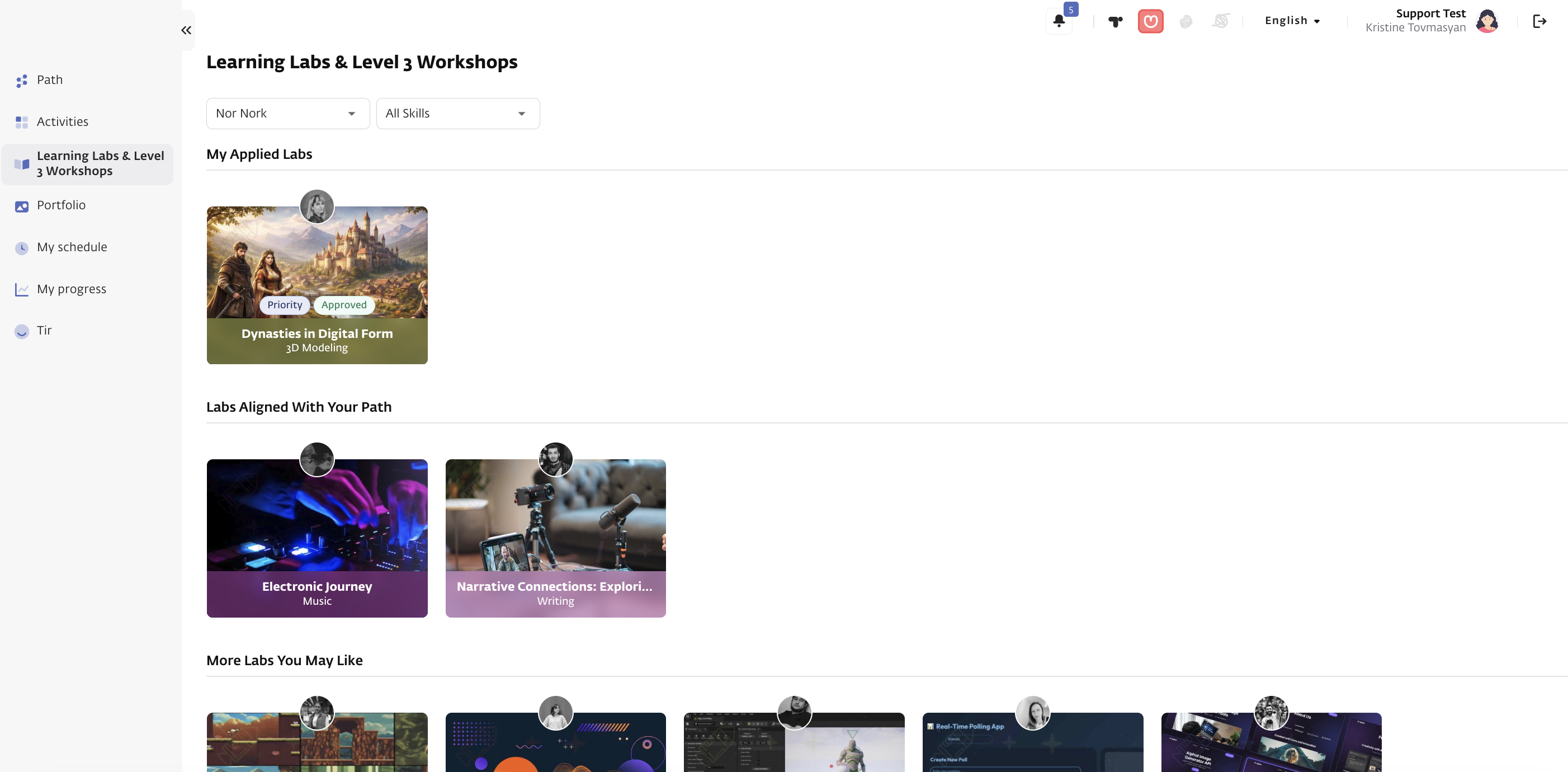
 Learning Labs are fully integrated into the Path. When a Learning Lab is created and its registration period is active, it becomes visible to students on the TUMO World Learning Labs platform. This allows students to view all components of their learning journey Learning Labs, permanent workshops, and self-learning activities directly within their Path. This holistic view helps students better understand their schedule and make more informed decisions about their learning progress.
Before we go on
How to See Available Learning Labs
- The system automatically filters Learning Labs based on the student’s location.
- Students can also filter Learning Labs by skill, selecting their preferred area of focus.
Note: Only Learning Labs with an active registration period are visible and open for application.
How to Apply for a Learning Lab
To apply for a Learning Lab, students should follow these steps:
- Open the Learning Labs section in TUMO World.
- Select a Learning Lab to view its details.
- Choose the desired schedule.
- Click the Apply button (available only if the lab is open for the student’s location and prerequisites are completed).
Important: When a student applies for a Learning Lab, the system displays a warning that approval may modify their current learning Path.
If the lab conflicts with existing workshops, schedules, or prerequisite chains, the system recalculates the Path, treating the lab as a fixed commitment.
Students will see a pop-up notification explaining that the lab may alter their current Path. They are then presented with a comparison view showing:
Their current Path
A potential new Path that includes the selected Learning Lab
Students can then choose to:
Confirm the new Path and proceed with the application
Or cancel and retain their existing Path
Note: Once the application is Approved, the Learning Lab appears in the Path as Upcoming, allowing the student to follow its schedule or view further details.
Video Tutorial
Notification Emails for Application Outcome
Once a student’s application for a Learning Lab is Approved or Rejected, the system automatically sends a notification email to the student.
Approved: The email confirms that the student’s application has been approved and includes the Learning Lab schedule and relevant details.
Rejected: The email informs the student that the application was rejected and may include guidance or next steps if applicable.
Learning Lab Engagement Reminder
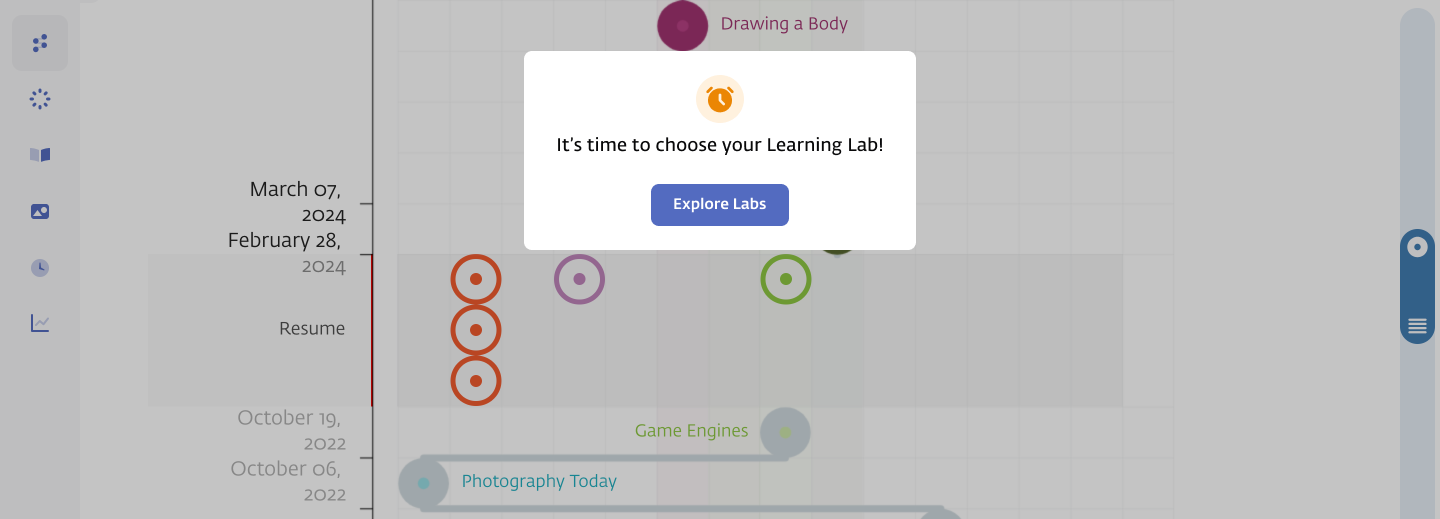
Path stage students who haven’t attended any Learning Labs in the past six months see a reminder pop-up upon login.
The pop-up directs them to the Learning Lab booking page to encourage participation and ensure a more holistic learning experience.
The pop-up can only be dismissed by navigating to the booking page.
Access to the Selection Wheel and Activities pages is restricted until the student interacts with the lab selection process.
Students can also indicate that they do not wish to participate in any lab.
If a student still has not joined a lab, the reminder pop-up will appear again the following month.
Learning Lab Start Notifications
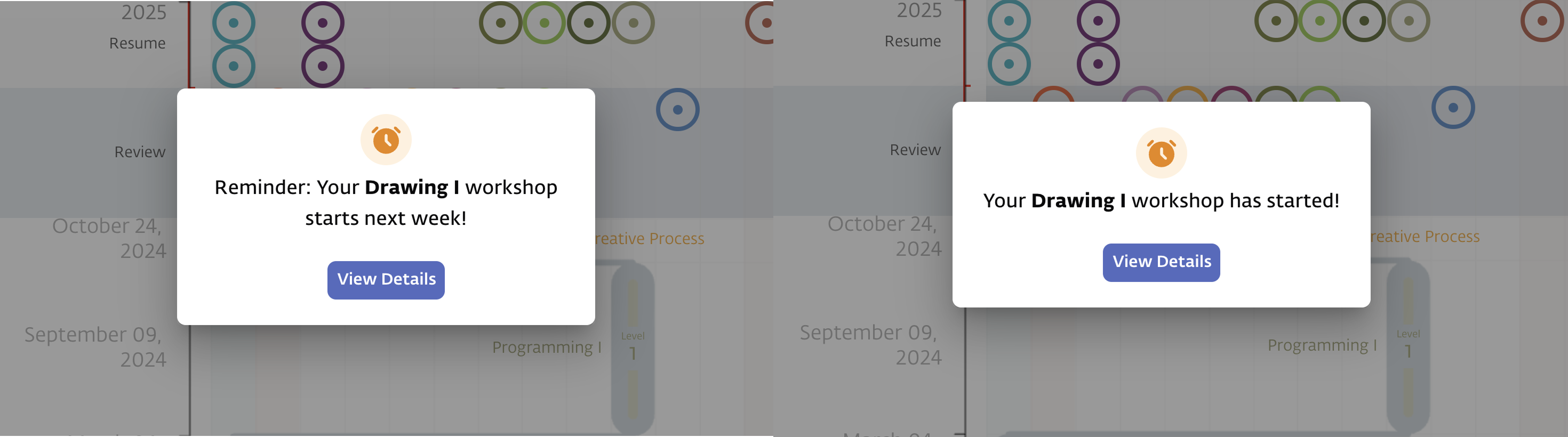
Similar to workshops, students receive a pop-up notification on their Learning Lab page before the lab begins.
One week before the scheduled start, a pop-up informs the student that the Learning Lab will start next week.
On the actual day of the Learning Lab, when the student logs in, a new pop-up appears indicating that the lab has officially started, allowing them to follow the lab schedule and access its content.