

After completing the required activities to pass the Orientation phase, students need to choose the skills they want to continue developing in the Path phase.
Before You Begin
Ensure the student has access to TUMO World.
- Verify that the student meets the Orientation configuration requirements for your TUMO Center.
Skill Selection Wheel
As mentioned earlier, TUMO offers two self-learning phases: Orientation and Path. When a student reaches the Path phase, they will encounter the Selection Wheel, which allows them to select the skills they want to continue learning and schedule workshops accordingly.
What is the Selection Wheel
Once the student completes the Orientation activities and meets the center-specific configuration requirements, the Selection Wheel will appear. Here, the student can select the skills to continue their learning journey in Path and plan workshop participation.
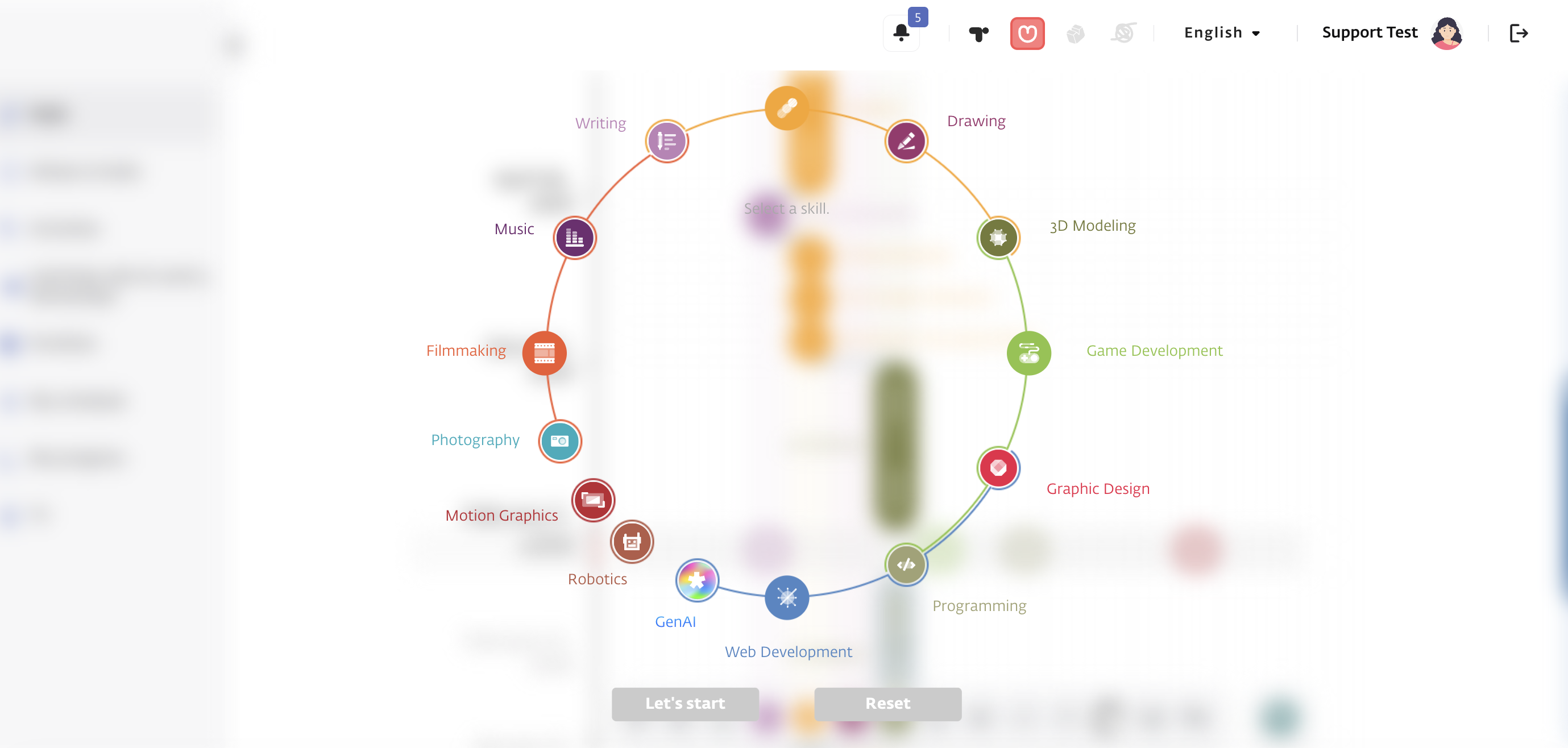
In the screenshot example, there are 14 skills, and the student must choose 4 to continue.
Important Reminder: The number of skills and the selection rules may vary depending on your TUMO Center.
No Path Message
In some cases, the Path cannot generate using the selected skills and displays the following message.
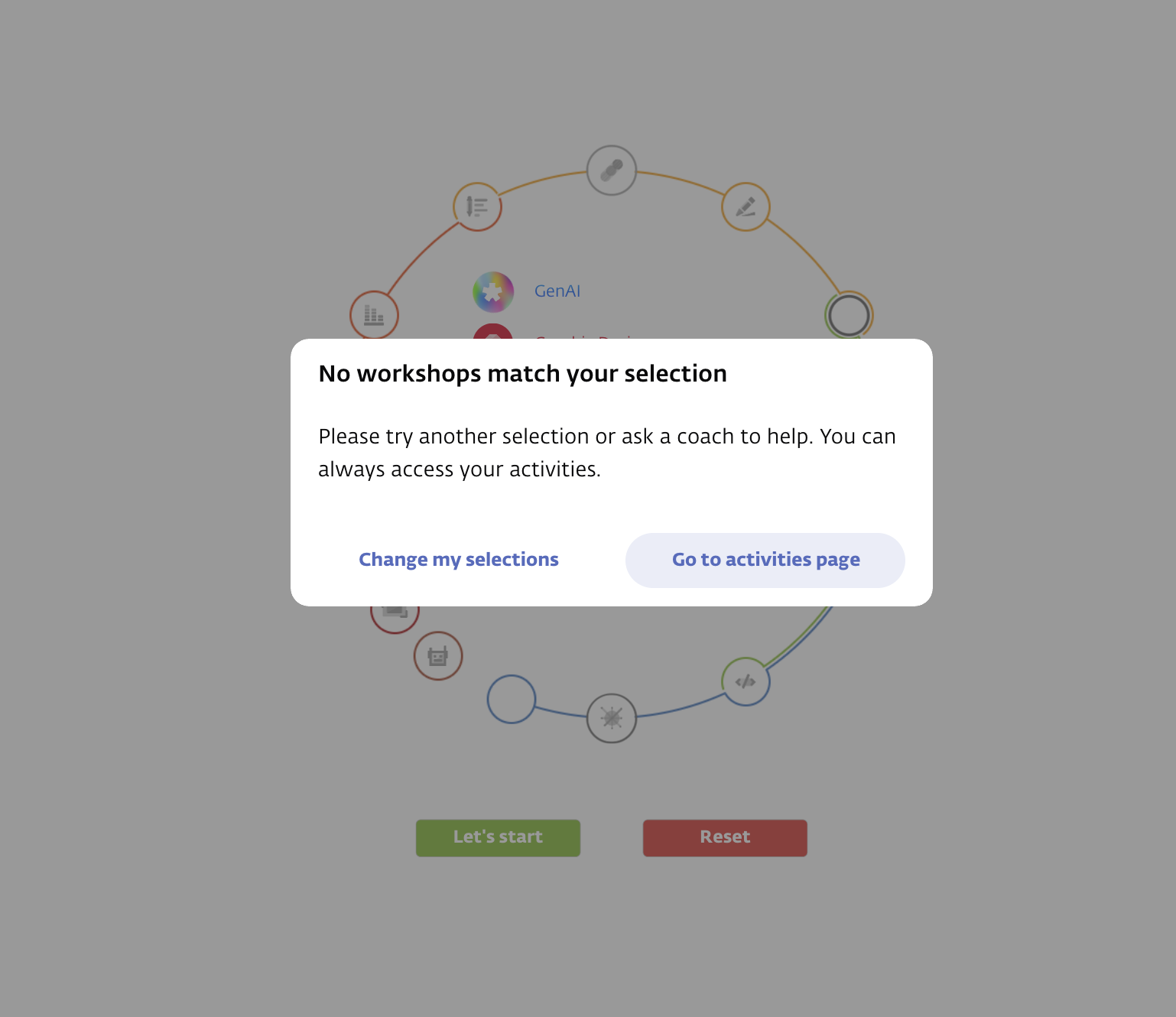
This usually occurs due to high workshop load, meaning there is no available space for this student and the system cannot generate an optimal Path.
This may also happen if the student has two workshops scheduled in the same month with identical timings (in which case one workshop may be manually registered, as Path cannot create two workshops with the same schedule in a single month).
When this message appears, you have two options:
Change My Selections:
Re-select the skills so the Path can attempt to generate an optimal Path again.Go to activites page
Keep the selected skills and proceed, but the generated Path may be slightly less optimal. If the message still appears after pressing this button, make minor adjustments to the Skill Selection. Usually, changing one or two skills is enough to resolve the issue.