

Before You Begin
- Make sure you are logged in to T360 with your staff credentials.
- Your User Role determines which staff records and bulk actions you can access.
Overview
The Staff list page gives admins a single, searchable view of every staff account in T360. From here, staff can find any team member, filter the list by role, status, or location, customize which columns are shown, and, for permitted roles, update several staff members at once.
Using this page, staff can:
- Search and filter the full staff list
- Customize which columns are shown, and pin key ones in place
- Select multiple staff members to perform bulk actions
- View a history of past bulk actions
Viewing and Filtering Staff
- Full name, Username, Phone, Mobile phone, and Tumo email – each support text search directly in the column header.
- Status – filter by Active, Disabled, or Terminated.
- Role – filter by one or more roles from a searchable list (e.g. coach, admin, center-manager, registration-manager). A staff member can hold more than one role; additional roles beyond the first appear as a +N badge — hover it to see the rest.
- Location – the staff member’s primary location.
- Location permissions – every location the staff member has access to.
Customizing Columns
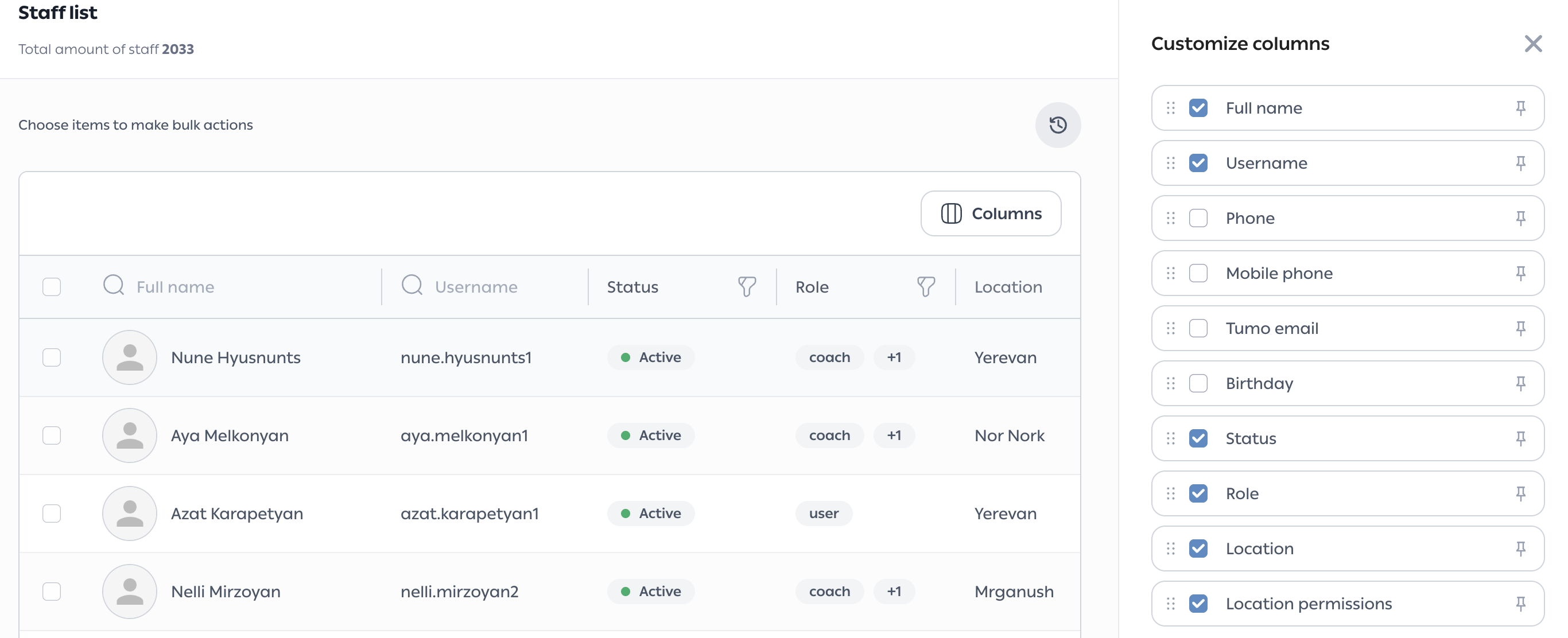
- Click Columns in the top-right corner of the table.
- Check or uncheck a column to show or hide it.
- Drag a column using its handle to reorder it, or click its pin icon to keep it fixed in place while scrolling.
Performing Bulk Actions
- Select the checkbox next to one or more staff members.
- Choose the bulk action you want to apply, such as Location permissions.
- Choose whether to Add or Delete the selected locations, then choose the locations.
- Click Update to apply the change, or Cancel to discard it.
Note: Bulk actions are only available to staff with the appropriate permission, and the actions available may vary by role.
Viewing Bulk Action History
Click the history icon in the top-right corner of the table to open the History panel. It lists every past bulk action, including the action type, the value applied, how many staff were affected, who made the change, and when.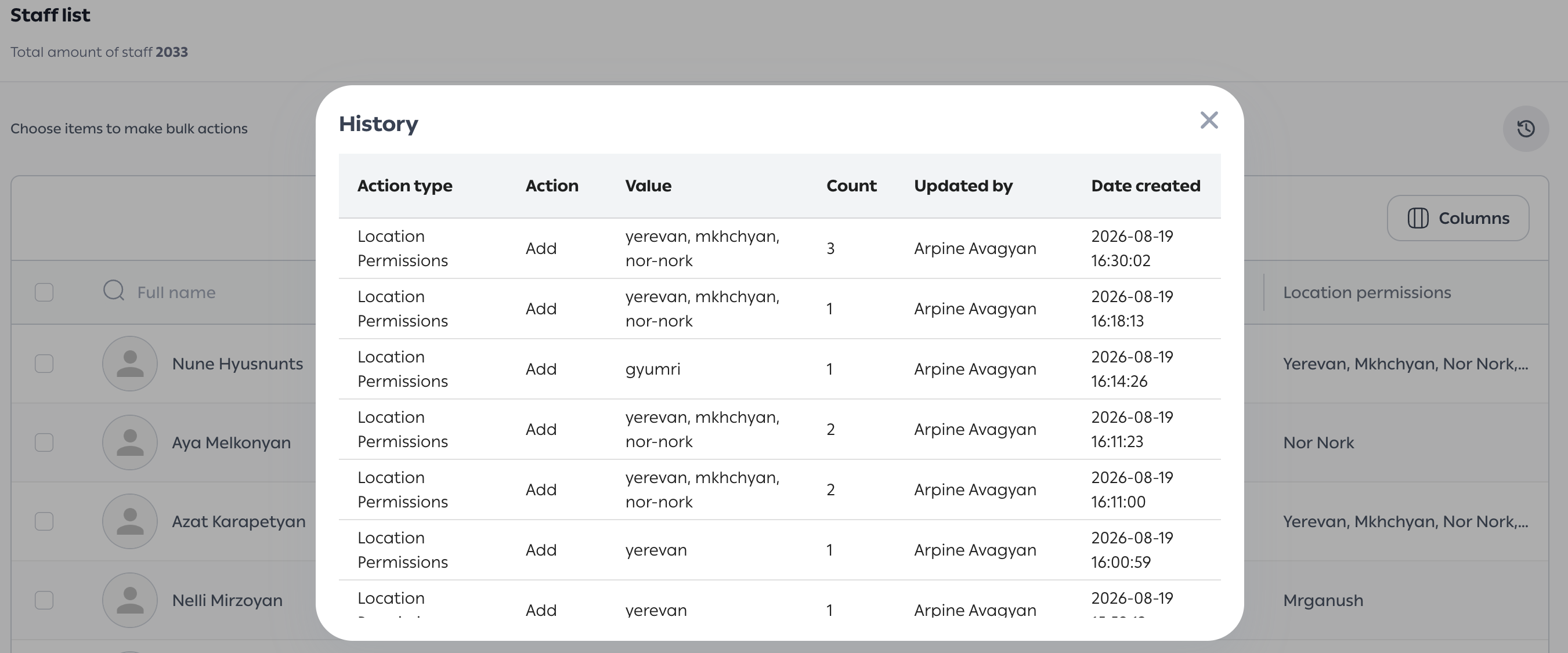
Pagination
Use Items per page at the bottom of the table to show 10, 20, 50, or 100 staff per page, and use the page numbers or arrows to move through the list.
Handling Common Issues
No other frequent issues have been identified for this workflow. If you encounter any problem, please contact TUMO Product Support.