

Before You Begin
- Make sure you are logged in to T360 with your staff credentials.
- Your User Role allows you to view and add notes. Deleting a note requires additional permissions, noted below.
Overview
The Note page keeps a running record of everything relevant to a student’s TUMO journey — coach observations, workshop feedback, schedule changes, and other system-generated entries — each timestamped and attributed to its author.
Using this page, staff can:
- View all notes for a student, filtered by category or type
- Add a new note and tag it with one or more types
- Edit a note’s text and types
- Delete a note (with the right permission)
- Pin a note to keep it at the top of the list
Note: Notes added automatically by the system — for example, when a student’s self-learning schedule or center location changes — can’t be edited or deleted by staff. These appear in the list without an Edit or Delete icon.
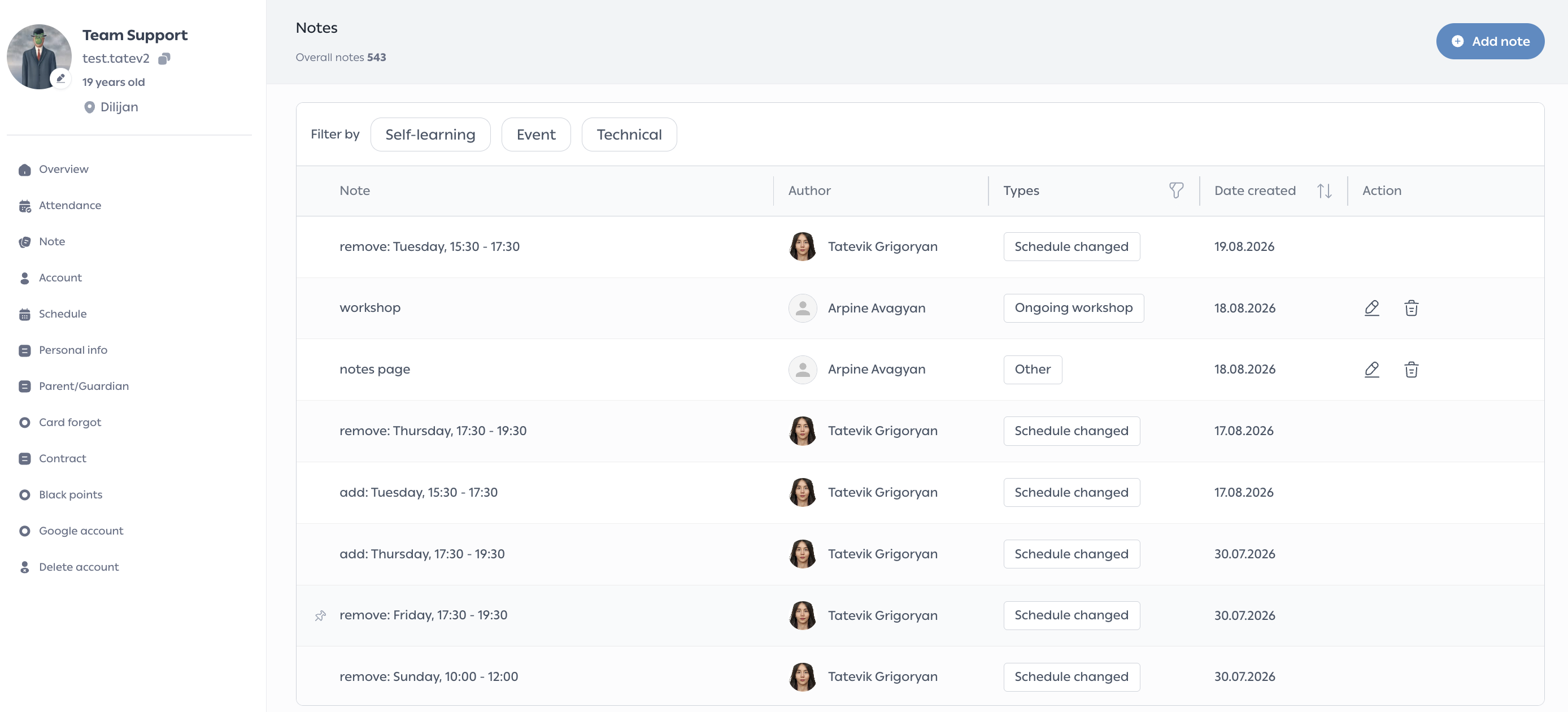
Filtering and Sorting Notes
- Filter by — click Self-learning, Event, or Technical to narrow the list to notes in that category.
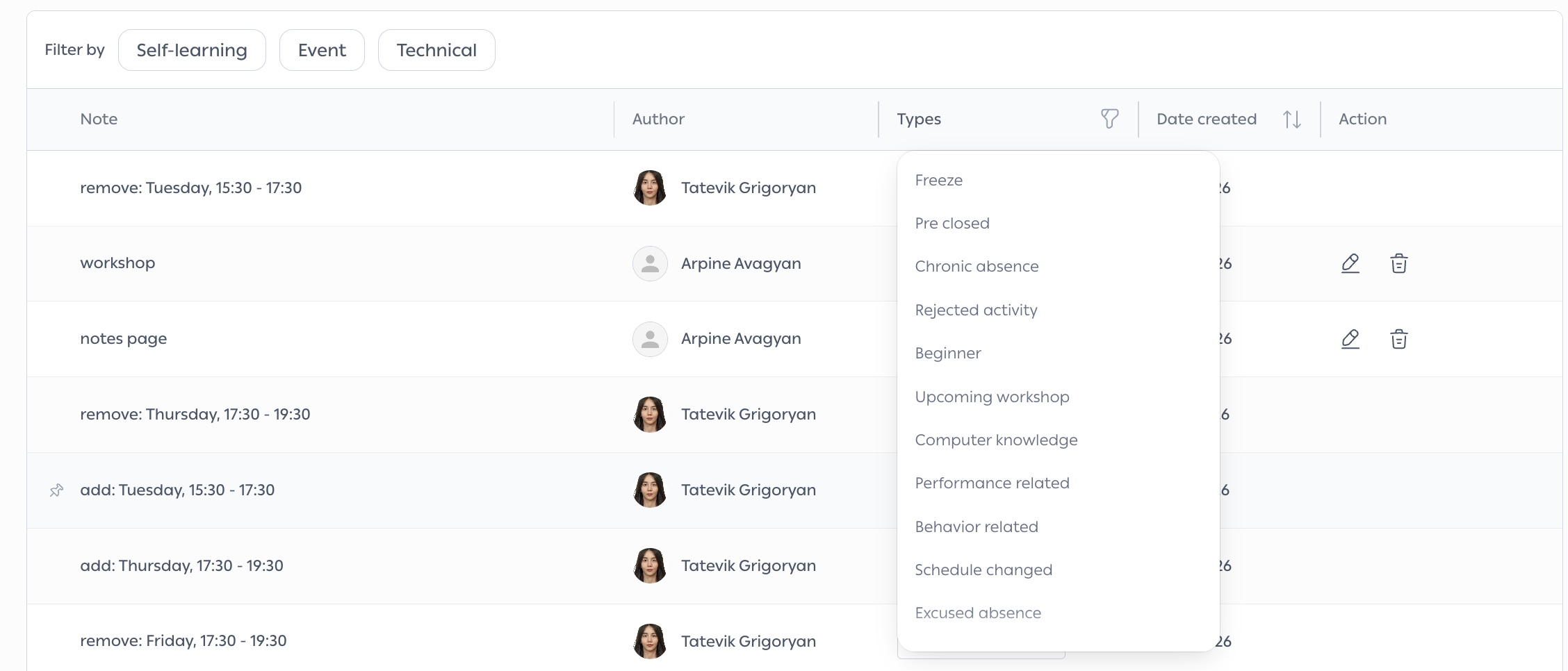
- Click the filter icon on the Types column to filter by one or more specific type tags (e.g. Freeze, Suspend, Excused absence).
- Click Date created to sort notes oldest-to-newest or newest-to-oldest.
Add a Note
- Click Add note in the top-right corner.
- Select one or more Types that describe the note (e.g. Beginner, Performance related, Other).
- Enter your note text in the Note field.
- Click Add to save it.
Edit a Note
- Click the pencil icon next to the note you want to change.
- Update the selected types or the note text as needed.
- Click Save.
Note: Only notes added manually by staff can be edited. System-generated notes don’t show a pencil icon.
Delete a Note
- Click the trash icon next to the note you want to remove.
- Confirm by clicking Delete in the dialog that appears.
Note: Deleting a note is only available to staff with the appropriate permission, and the action can’t be undone.

Pin a Note
Click the pin icon next to a note to keep it pinned at the top of the list, regardless of sort order. Click it again to unpin.
Handling Common Issues
No other frequent issues have been identified for this workflow. If you encounter any problem, please contact TUMO Product Support.