

Before You Begin
- Make sure you are logged in to T360 with your staff credentials.
- Your User Role allows you to view and edit the Account section.
Overview
The Account page is where staff manage a student's TUMO account settings — status, tags, coach assignment, key dates, login credentials, location, and the linked Google account — all from one place.
Using this page, staff can:
- View and update the student's account status, with valid transitions enforced automatically
- Add, remove, or create tags to categorize the student
- Assign or change the student's coach
- Set the presentation date and attending start date
- Generate or view the student's username and Tumo ID
- Set the student's location (TUMO center)
- Manage the student's TUMO Google account (status, password, deletion)
- Delete the student's TUMO account entirely
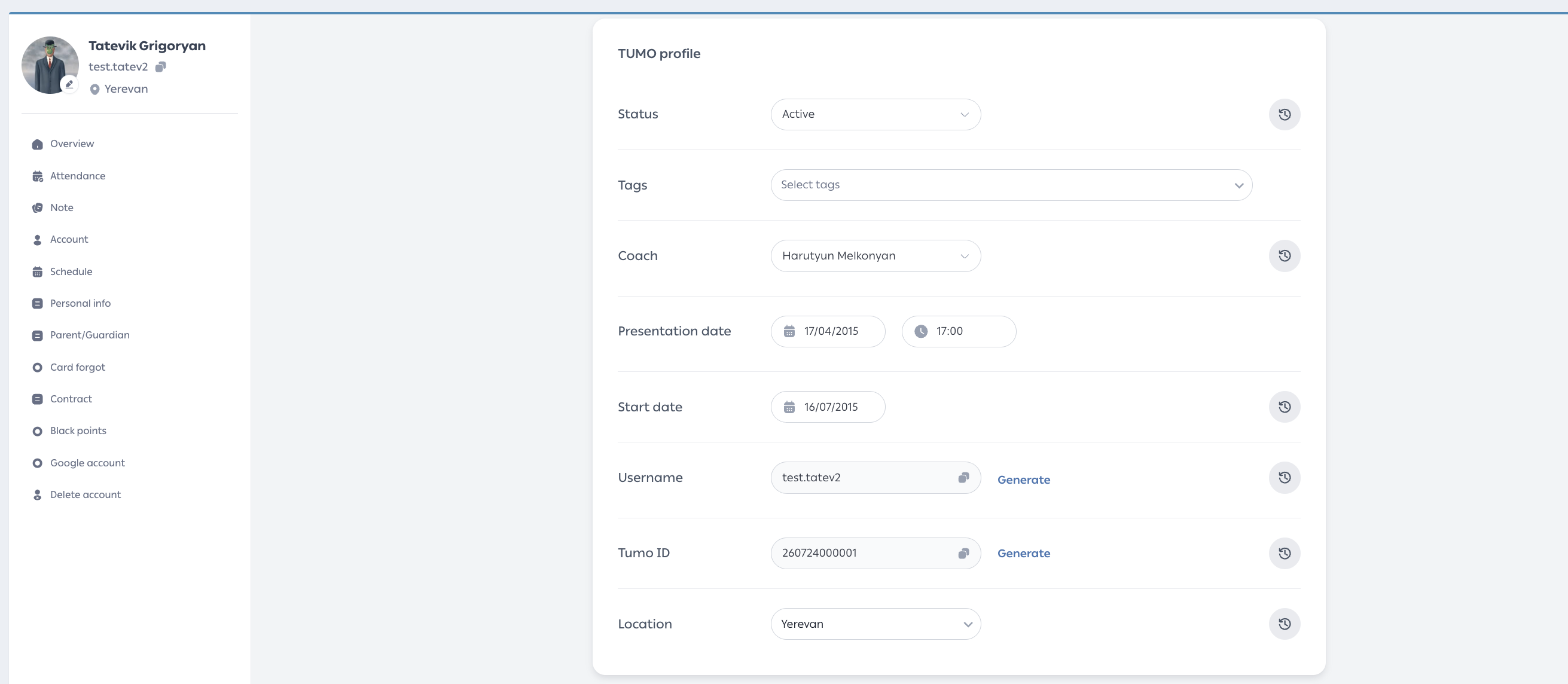
TUMO Profile
- Status – the student’s current account status. Only valid next statuses are selectable; Suspended, Alumni, and Closed each require extra info (a reason and/or a date) before you can confirm. Click the history icon to see past changes.
- Tags – search, add, or remove tags to categorize the student. Staff with the Manage Tags permission can also create new ones.
- Coach – assign or change the student’s coach from a searchable list, grouped by schedule fit and current workload.
- Presentation date & Start date – key dates for the student’s enrollment.
- Username & Tumo ID – click Generate to create either; both become read-only once set. Click the copy icon to copy them.
- Location – the TUMO center the student is associated with.
Fields with a history icon keep a log of past changes — click the icon to view it.
Google Account
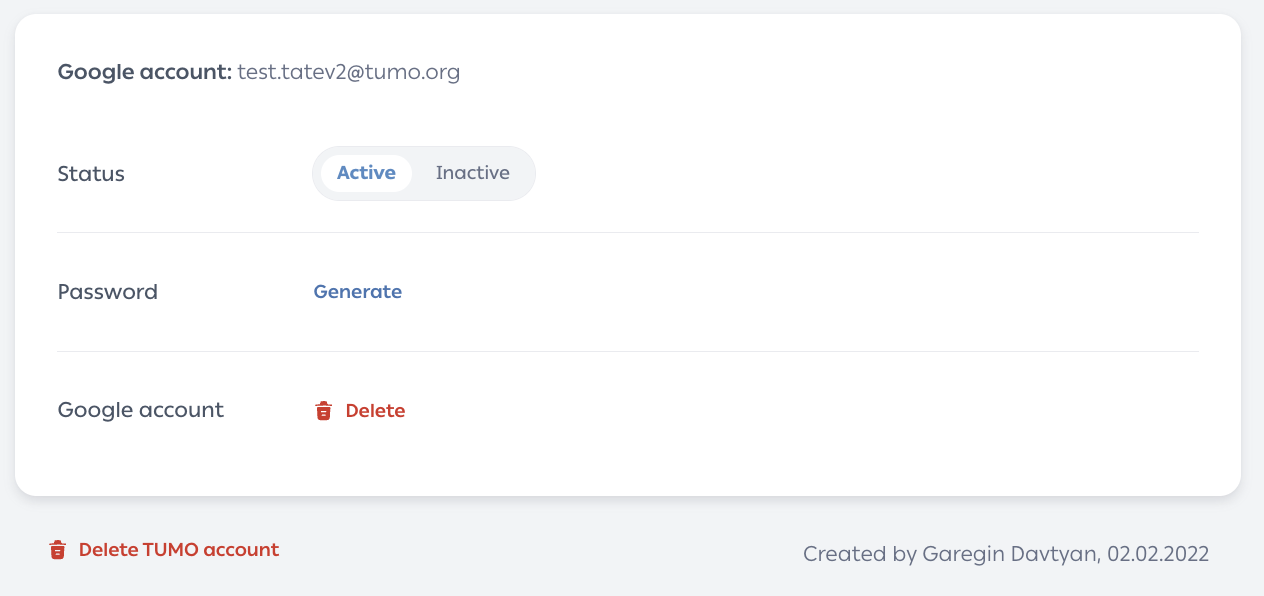
This section manages the student's TUMO-issued Google account.
- The linked Gmail address is shown at the top of the section.
- Status – toggle between Active and Inactive. Setting it to Inactive suspends access to Google Workspace tools without deleting the account.
- Password – click Generate to create a new password. It's shown once with a copy option, then hidden.
- Google account – click Delete to permanently remove the student's Google account. This requires confirmation and cannot be undone.
Delete TUMO Account
Click Delete TUMO account at the bottom of the page to permanently remove the student's entire TUMO account.
- Only available when the student's status is Pre-Registered, Registered, or Closed.
- The account cannot be deleted while an associated Google account (Active or Inactive) still exists — staff are prompted to handle that first.
- A confirmation dialog states that the action is irreversible and lists what will be deleted.
- Once confirmed, the account and its associated data are soft-deleted per data retention policy, and the action is recorded in the account's history.
Handling Common Issues
No other frequent issues have been identified for this workflow. If you encounter any problem, please contact TUMO Product Support.
See also