
 Before You Begin
- Make sure you are logged in to T360 with your staff credentials.
- Your User Role allows you to view student profiles.
Overview
The Overview page is the default landing page of a Student Profile. It gives staff a single, consolidated view of a student's account, contact and personal details, current skills, and workshop/learning lab history — without needing to open each subsection individually.
Using this page, staff can:
- View core account information (status, phase, coach, schedule, etc.)
- Track a student's current skills
- Review the full list of workshops and learning labs the student has been part of
Note: Some fields and sections are shown or hidden depending on your center's configuration. If a field mentioned below is missing from a profile you're viewing, it may not be enabled for your center.
Account Info
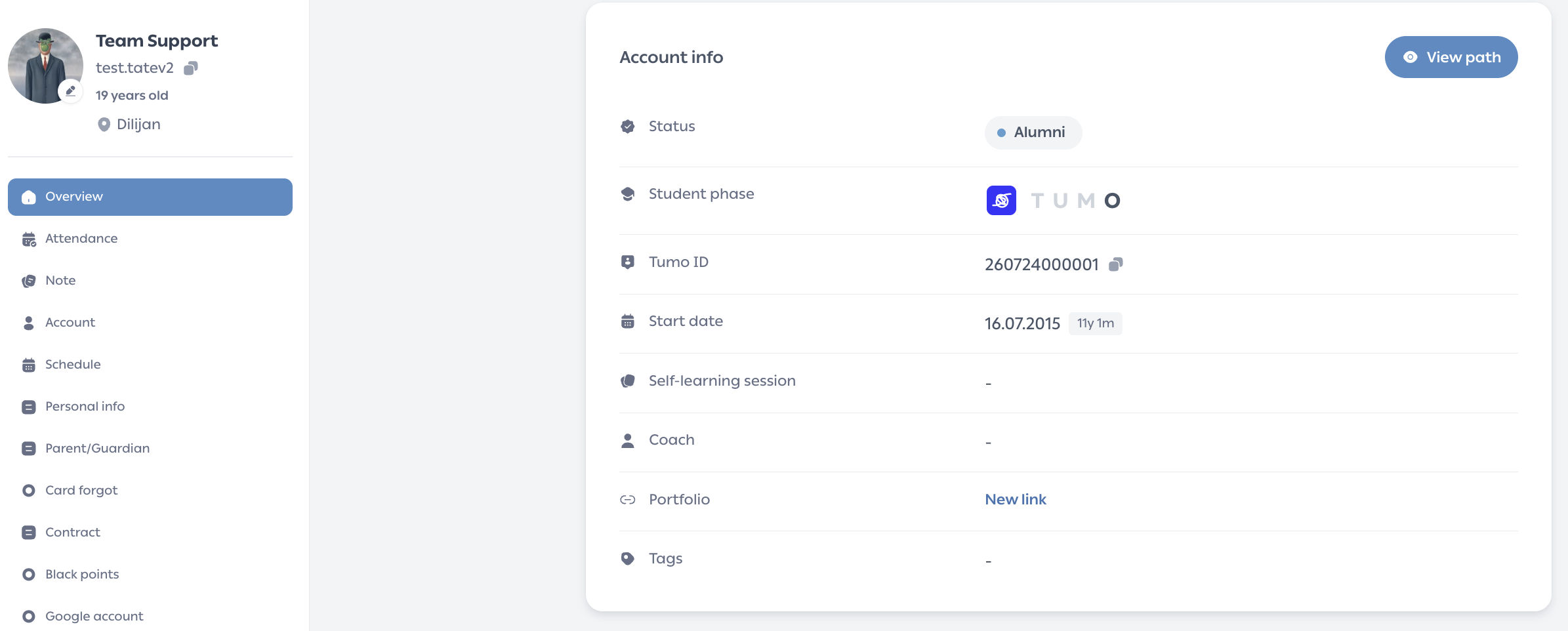
The Account info section summarizes the student's enrollment status and core account details.
- Status – the student's current account status (e.g. Active, Pre-Registered).
- Student phase – the student's current TUMO phase (T, U, M, or O), highlighted among the four. Phases are assigned automatically based on completed events and cannot be set manually.
- Tumo ID – the student's unique ID.
- Start date – the student's attending start date.
- Self-learning session – the student's assigned weekly self-learning session(s).
- Coach – the student's assigned coach.
- Portfolio – a link to the student's TUMO Portfolio.
- Tags – any tags applied to the student's account.
The following action is available at the top of the section:
- View path – opens the student's Path in a read-only viewer, exactly as the student sees it. Changes cannot be made from this view.
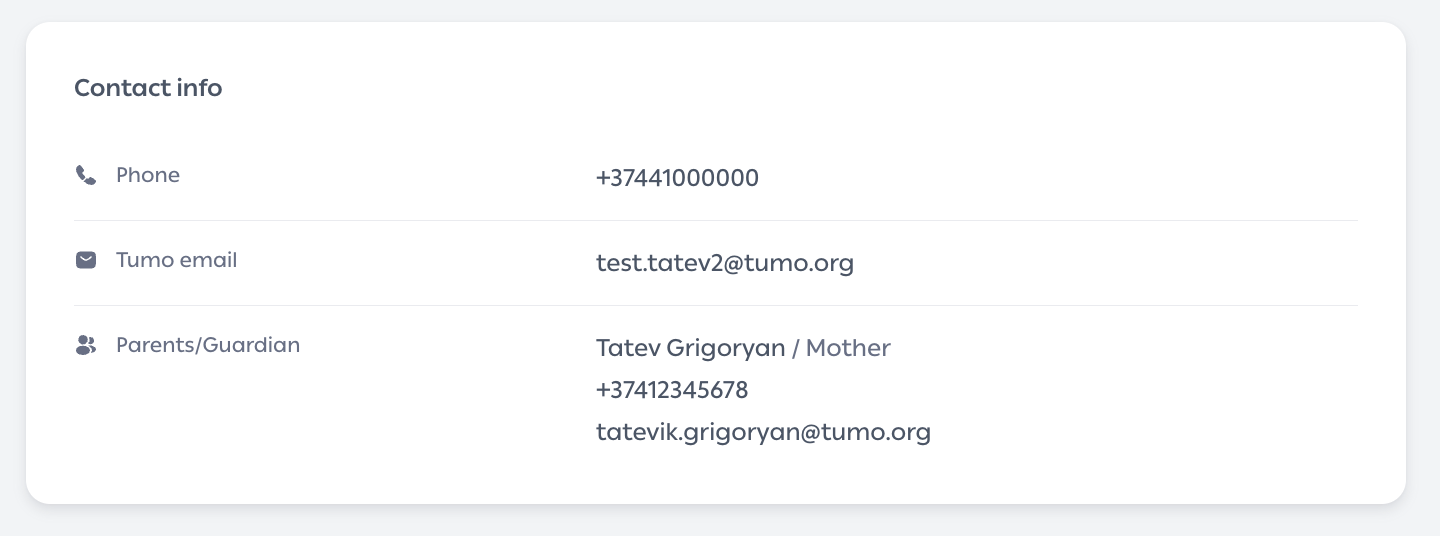
Contact Info
- Phone – the student's phone number.
- Tumo email – the student's TUMO-issued email address.
- Parents/Guardian – name, relation, phone number, and email of the student's parent or guardian.
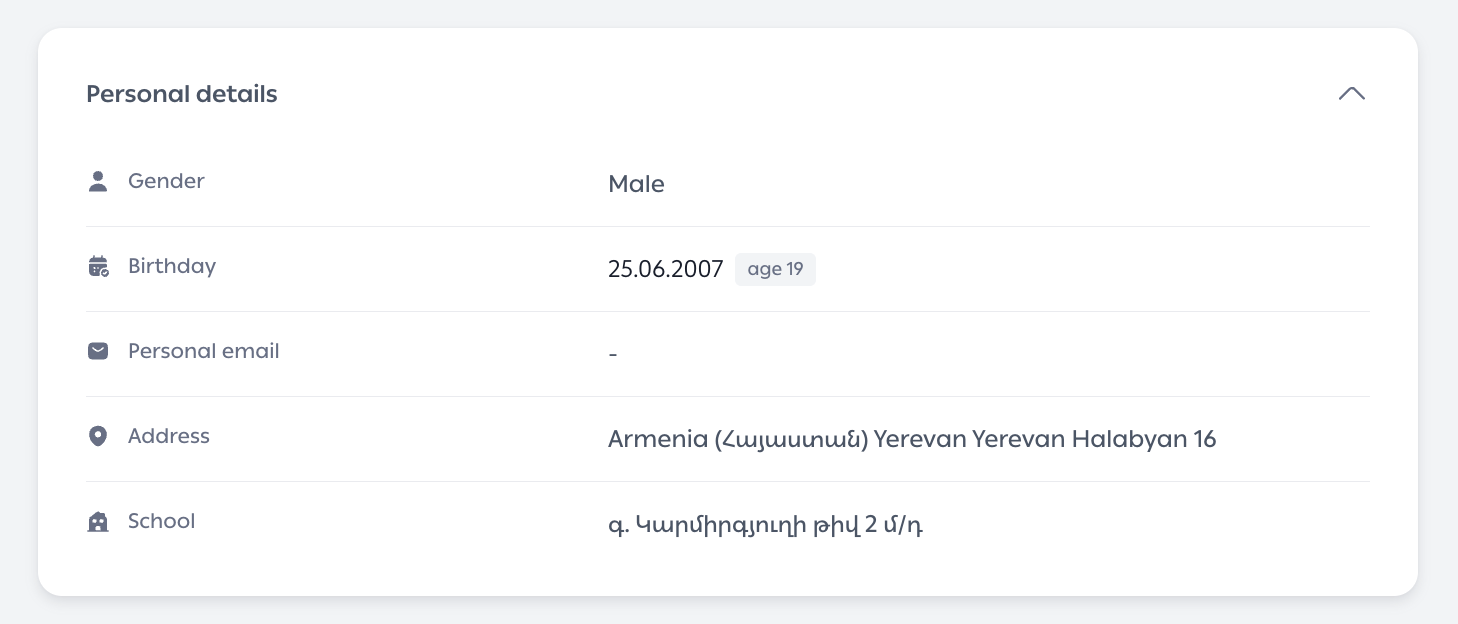
Personal Details
This section is collapsed by default. Click it to expand and view:
- Gender
- Birthday – shown along with the student's current age.
- Personal email
- Address
- School
To edit any of these fields, go to Student Profile → Personal Info.
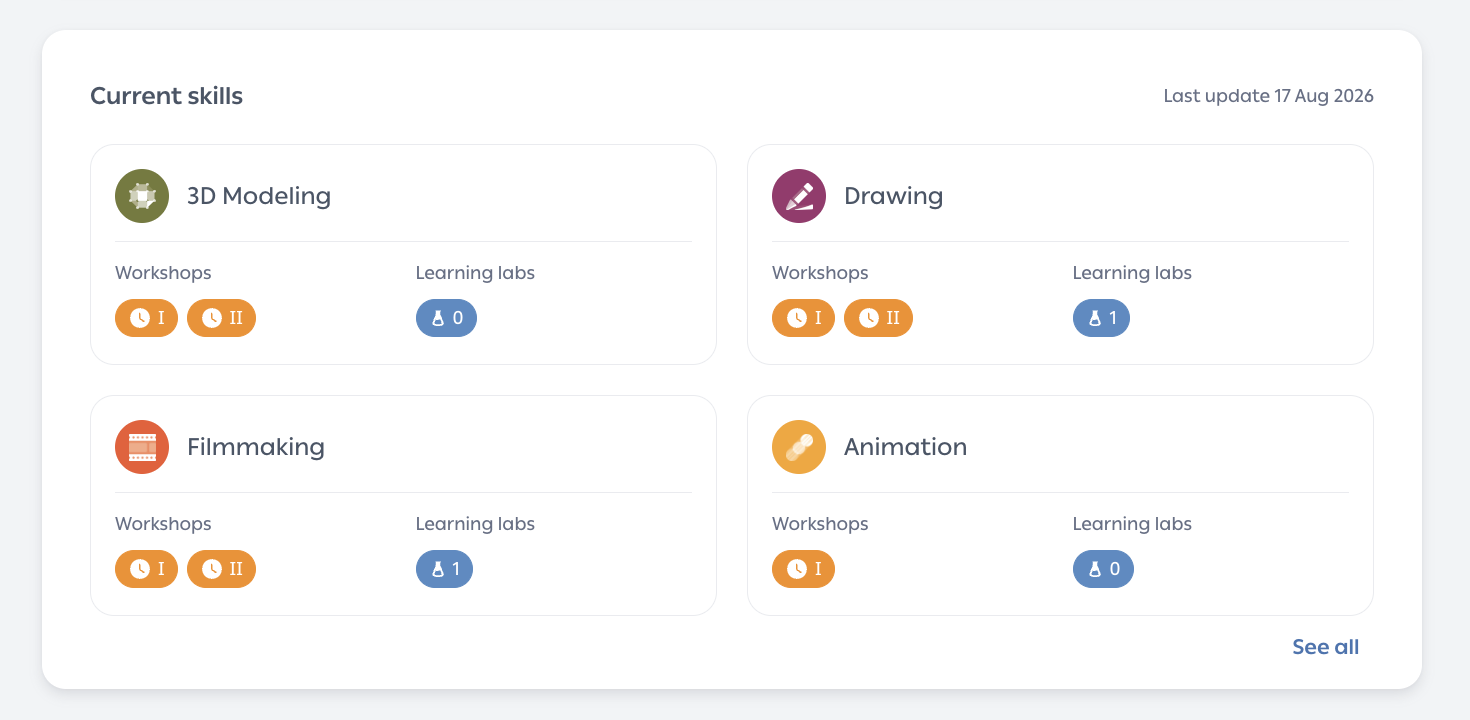
Current Skills
Shows the students active skills, each as a card with a Workshops badge (Completed, Upcoming, or Missing from path) and a Learning labs count. Clicking a skill's name filters the Workshops & Learning Labs table below to that skill.
Previous Skills
If a student has recorded progress in a skill they're no longer actively engaged in, that skill appears under Previous Skills instead of Current Skills. Each card shows only the skill's completed permanent workshops and the number of completed learning labs — upcoming or missing workshops aren't shown, since the skill is no longer active.
Orientation Stage Progress
Students still in the Orientation stage (no Path yet) don't have Current Skills or Previous Skills sections. Instead, the page shows:
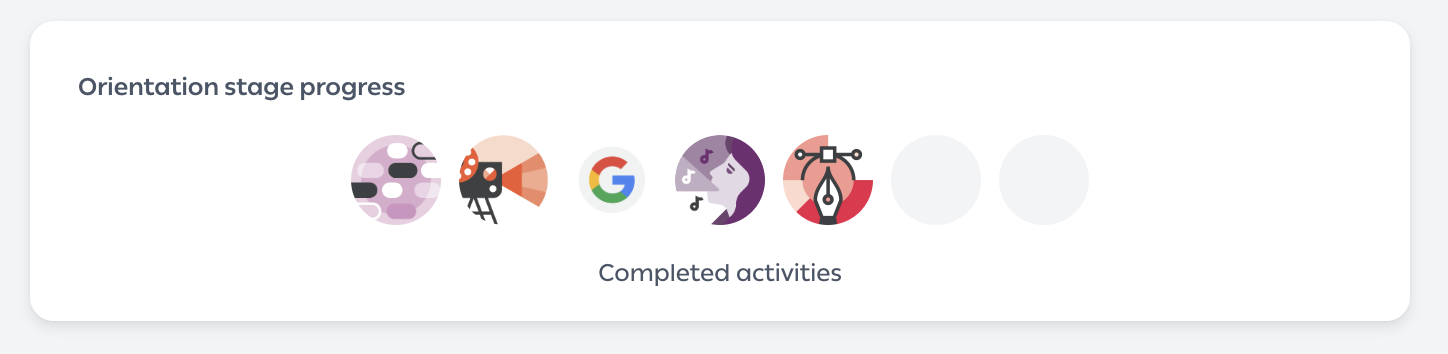
- Orientation stage progress – a checklist of orientation activities. Completed ones appear as filled icons (hover for the activity name); the rest appear as empty circles.
- Skill achievements – any workshop or learning lab progress the student has made in a specific skill, even without a formal skill selection.
Workshops & Learning Labs
This table lists every workshop and learning lab the student has been part of, sorted by date with upcoming ones first.
- Filter by Skill narrows the list to one skill; the column headers sort it.
- Status filter covers: Pending, Upcoming, Completed, Participated, Incomplete, Withdrawn, Unsubscribed, Ongoing, or Rejected.
- A file icon shows whether the student's final result has been uploaded — click it to open the workshop's media page.
Note: Clicking a title opens that event's subscriber list in a separate staff tool (Event Graph), outside the Student Profile.
Handling Common Issues
No other frequent issues have been identified for this workflow. If you encounter any problem, please contact TUMO Product Support.
See also