
 The Coach Tool helps coaches manage their daily work by automatically surfacing which students need attention and why. Instead of manually scanning student lists for new assignments, rejected activities, upcoming workshops, or inactivity, the tool generates follow-up tasks automatically — so nothing slips through the cracks.
The tool has two main views:
- Card View (default) – a focused, per-session view showing exactly which students need follow-up and why.
- Table View – a full list of students with detailed columns and filters.
Before You Begin
- Ensure that you have an active T360 account.
- Verify that your User Role grants you permission to access the Coach Tool (Coach or Coach Manager access).
Step-by-Step Guide
1. Using Card View
Card View is where coaches do most of their day-to-day follow-up work. It only appears once a Coach and a Session have been selected.
How cards are ordered
- Students who are currently present (logged in) appear first.
- Within that, students with more follow-up tasks appear first.
- The view updates in real time as students log in/out or as tasks change — no page reload needed.
What's on a card
- Student info: full name (clicking opens the student's profile overview page), TUMO status, View Path option, and presence status.
- Follow-up tasks: each student can have multiple follow-up tasks, though only one can be expanded at a time. Each task shows its type (with a corresponding icon) and a 4-circle time indicator, where each circle represents one week since the task was created (hover to see the exact date).
- Action buttons: Note, Done, Close.
Filtering Card View: Cards can be filtered by Coach, Session, and student name.
Important Tip: Filtering by follow-up type is planned for a later phase and is not yet available.
2. Using Table View
Table View shows the full student list.
Filters:
- Coach – auto-fills with the coach's own name on page load. Viewing multiple coaches at once is planned for a later phase.
- Session – auto-fills with the closest upcoming session once the Coach filter is set.
- Default "All" view – if the Coach filter is cleared, all students with assigned coaches are shown, filtered to their closest upcoming session.
Switching views: Once Coach and Session are filled in, a toggle lets you switch between Table View and Card View. Card View is the default.
What each column shows
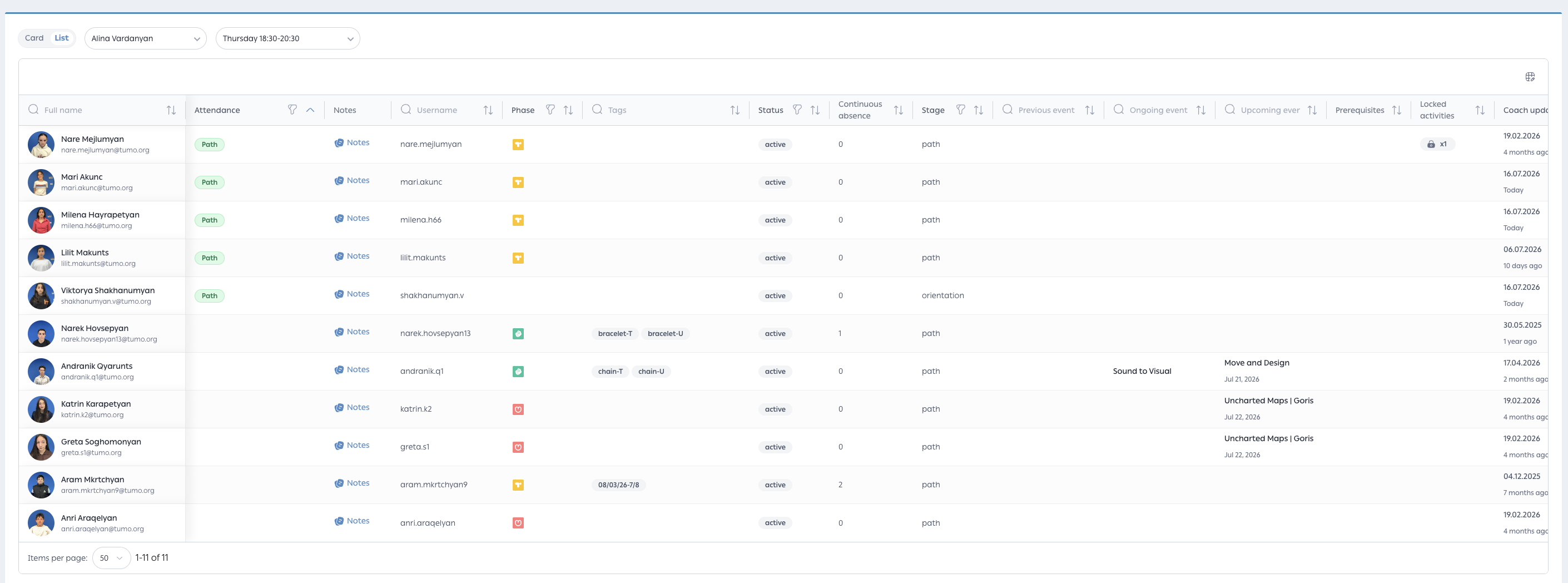
Most columns can be searched, sorted, and filtered individually. The list shows 50 students per page by default.
3. Understanding Follow-Up Task Types
Every task in Card View falls into one of five types.
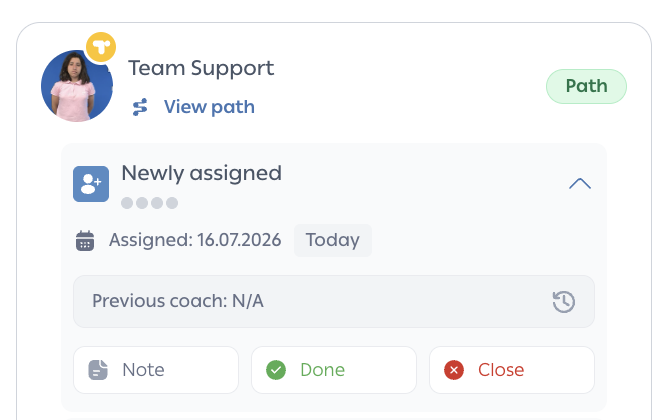
Newly Assigned (one-time)
- Appears when: a student is newly assigned to a coach and no "Newly Assigned" or "Beginner" note has been added yet.
- Shows: task creation time, assignment date, time since assignment, the previous coach's name, and a button to view that student's coach history.
- Closes automatically if: the student is reassigned to a different coach.
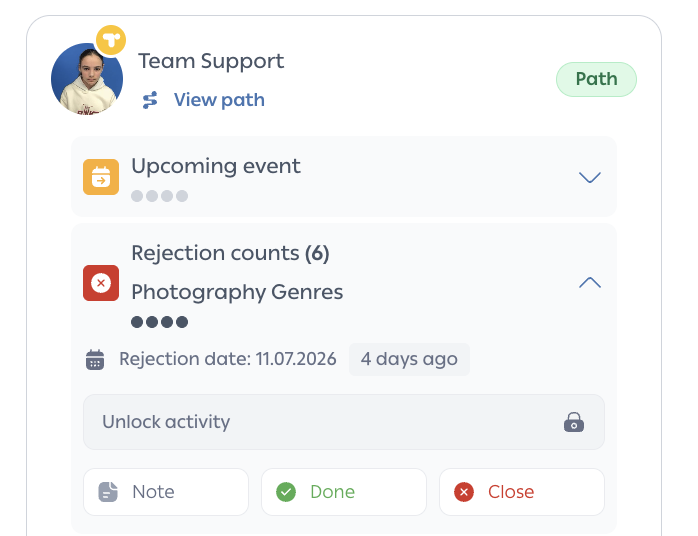
Rejected Activity Follow-Up (ongoing)
- Appears when: a student has 3 or more rejected activities.
- Shows: how many times the activity has been rejected, the rejection date, time passed since the rejection, and the activity name with an unlock button. Clicking an activity opens the Unlock pop-up — unlocking it updates the task automatically.
Important Tip: This task type will be redesigned soon to group all rejected activities under a single task.
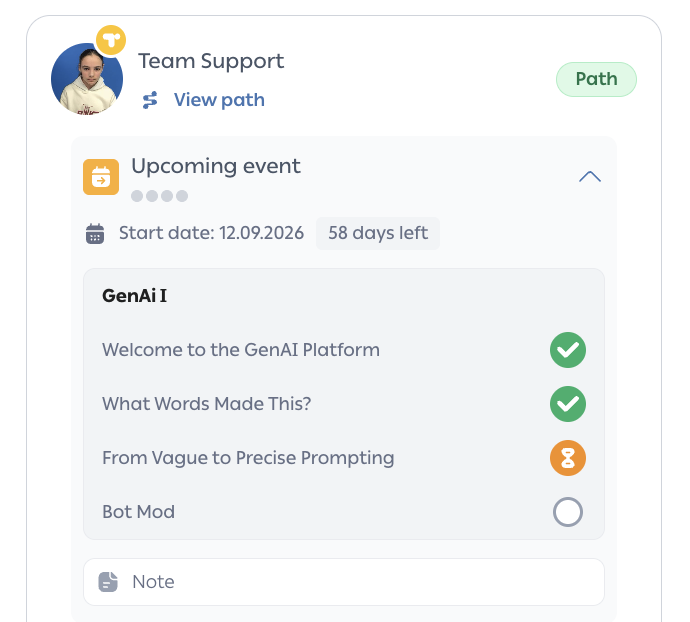
Upcoming Workshop Follow-Up (ongoing)
- Appears when: a student has a workshop coming up within the next month and has at least one incomplete or rejected prerequisite. This also triggers if a student changes their learning path and now has an upcoming workshop with incomplete prerequisites.
- Shows: prerequisite completion ratio (e.g., 1/3 done), the workshop's start date, how many days remain before it starts, and each prerequisite's status (Awarded / Rejected / Pending / Not Marked).
- Closes automatically when the workshop starts and all prerequisites are completed. This task type does not have the Done or Close actions described in Step 4 below.
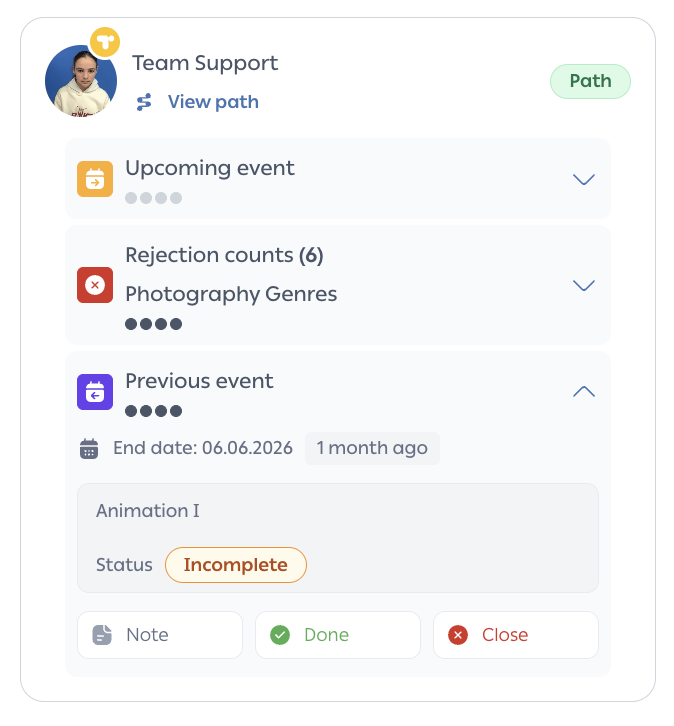
Previous Workshop Follow-Up (one-time)
- Appears when: a student had a workshop in the last 30 days that they didn't complete (Withdrawn, Participated, or Incomplete).
- Shows: the workshop's end date, time elapsed since it ended, the workshop name (linking to the event's media page), and the student's status in it.
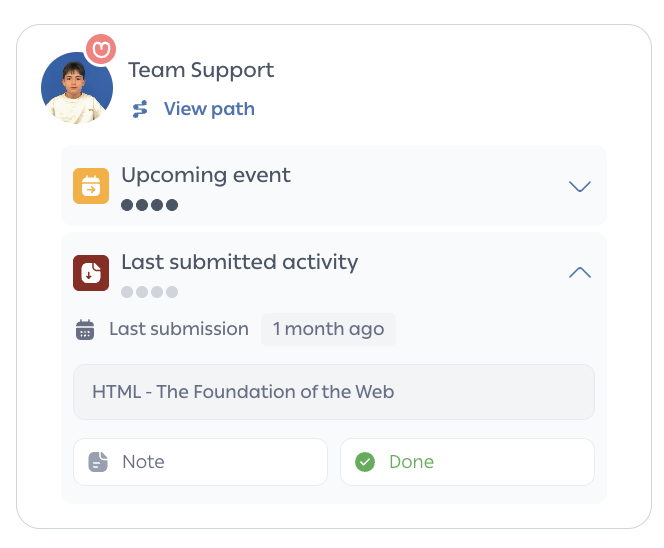
Last Submitted Activity Follow-Up (ongoing)
- Appears when: a student has been active (present) on the self-learning platform for 2 or more days, has no ongoing events at that moment, and hasn't submitted any activity in that time.
- Shows: the last submitted activity's name and time passed since the submission date.
Working With a Task
Each task — except Upcoming Workshop Follow-Up, which closes automatically when the workshop starts — offers the following actions:
Action | What it does |
|---|---|
Note | Adds a note to the task. The follow-up type is automatically tagged to it. If saved as a draft, a draft indicator appears on the task. |
Done | Marks the task complete. Once a student has no remaining open tasks, their card disappears from the view. Task shows up in History as "Done." |
Close | Closes the task when it's no longer relevant. Shows up in History as "Closed." |
Auto-Close (system action) | The system closes a task on its own if the original trigger condition is no longer valid. Shows in History as "Auto-Closed." |
Adding Notes
- Writing a note automatically tags it with the relevant follow-up type.
- Any added note — draft or final — shows a note icon indicator on the task.
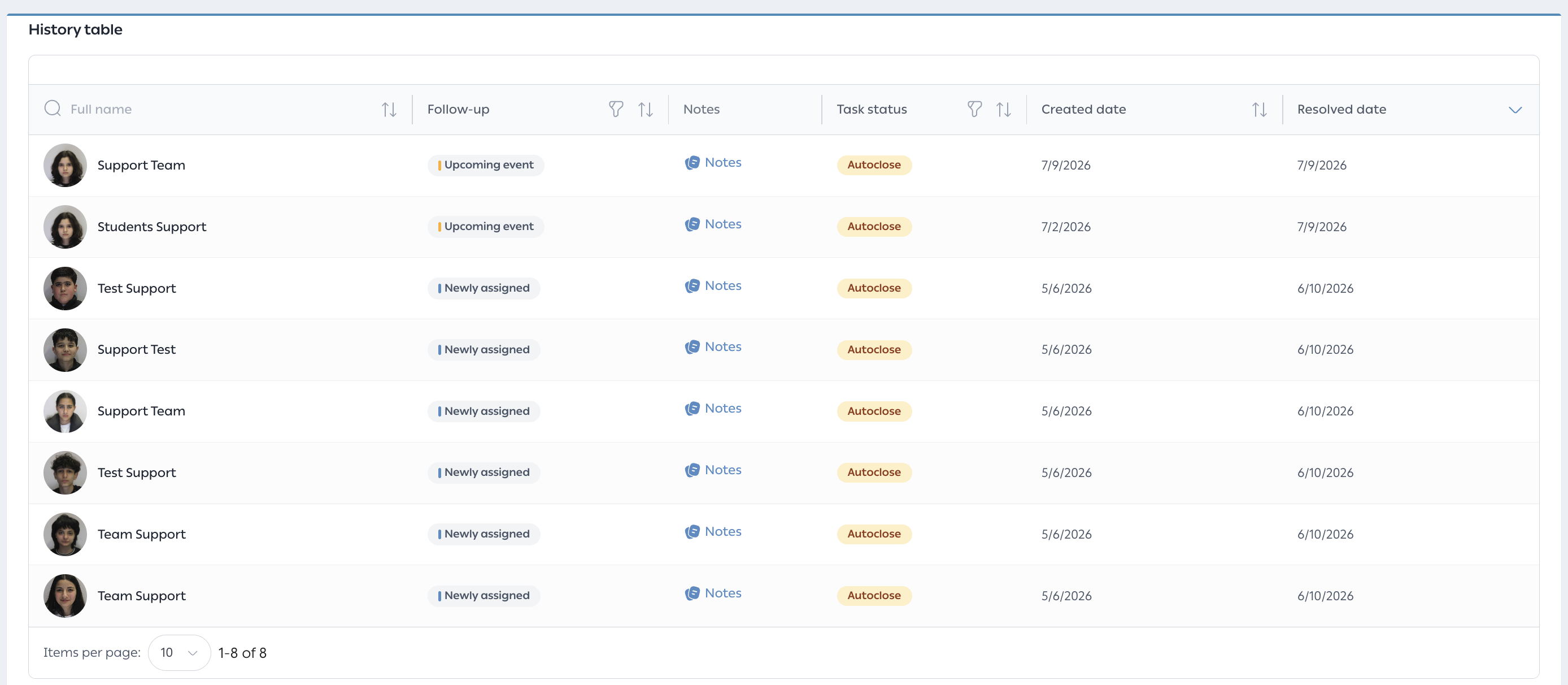
- Notes added from Card View later show up in the History table, linked to the action they were part of.
- Clicking a note in History reopens the Notes pop-up, focused on that specific note.
Viewing History
The History table is the full record of resolved follow-up tasks.
Handling Common Issues
No frequent issues have been identified for this workflow. If you encounter a problem, please contact TUMO Product Support.