

As part of our knowledge base documentation, we are introducing the system for workshop completion statuses to provide students with more meaningful feedback and recommendations.
Below is a breakdown of the changes and what’s new.
Before You Begin
Make sure that:
- You are logged in to T360 with your staff credentials
- Your role allows you to create or access the Self Learning Schedule section
Key Changes to Completion Statuses
Completed Status
Students will now receive a Completed status if they finish a workshop. This status has two sub-options:
- Completed: Path Recommends the Next Level
Indicates that the student is ready to advance. - Participated: Path Recommends the Same Level
Suggests the student should remain at the current level for further development.
Incomplete Status
This replaces the Fail status, signifying that the student has not yet mastered the necessary skills but avoids the discouraging term “fail.”
Note:The existing Withdrawn and Unsubscribed statuses for students who leave a workshop remain in place.
Workshop Leader Evaluation Process
Workshop leaders assign a status based on a rubric. The rubric contains reasons and associated feedback for assigning a Completed, Participated, or Incomplete status for each skill area.
While students will not see the reasons, they will receive the corresponding feedback.
Key Steps
- Select Status and Reason
Choose a predefined reason from the rubric for each skill area. The system will automatically display feedback based on the selected reason. - Custom Feedback
You can also provide personalized comments in the custom feedback field, which will be visible to students along with the predefined feedback.
Video tutorial
Student-Side Updates
Path Changes
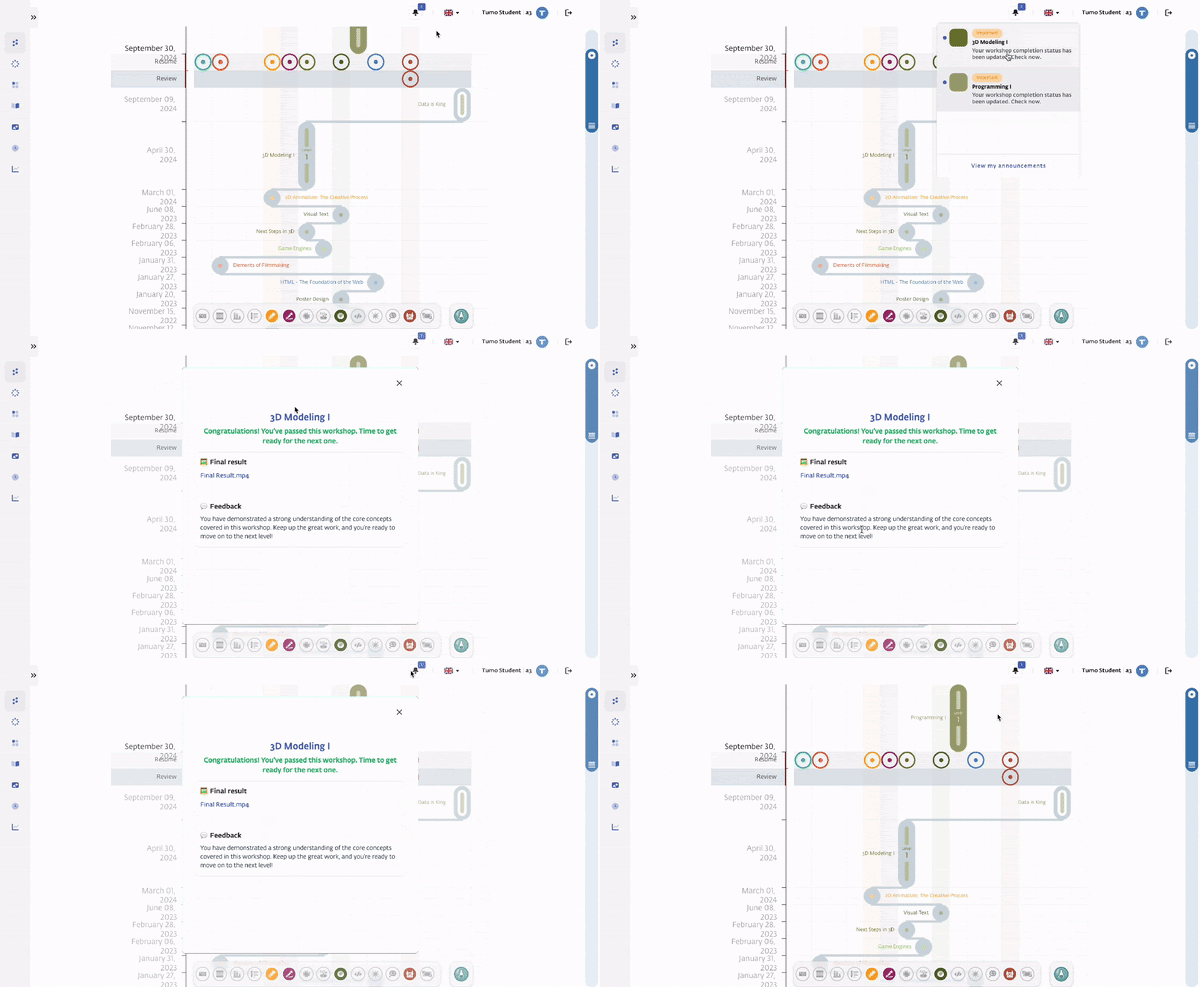
Students will receive a Path notification once their event evaluation is completed and the final event status is set.
Clicking the notification will open the corresponding workshop information modal page, where students can view:
- A standard message with appropriate coloring based on their final status
- Feedback provided by the workshop leader
- Any attached final result files, if available
Portfolio Changes
- Final result files for both Participated and Completed statuses will be displayed in the student's Portfolio
- Results for Participated status events will automatically be placed in the Archive section of the Portfolio