

Two-factor authentication (2FA) is an essential security measure that adds an additional layer of protection to your online accounts beyond a password. It requires two forms of identification before granting access to an account.
How Authenticator Apps Work
One of the most popular ways to implement 2FA is to use an authenticator app on your mobile device. Authenticator apps work similarly to text-based 2FA, but instead of receiving a code via text, the code appears directly in the app.
Steps to Set Up an Authenticator App for T360 Accounts
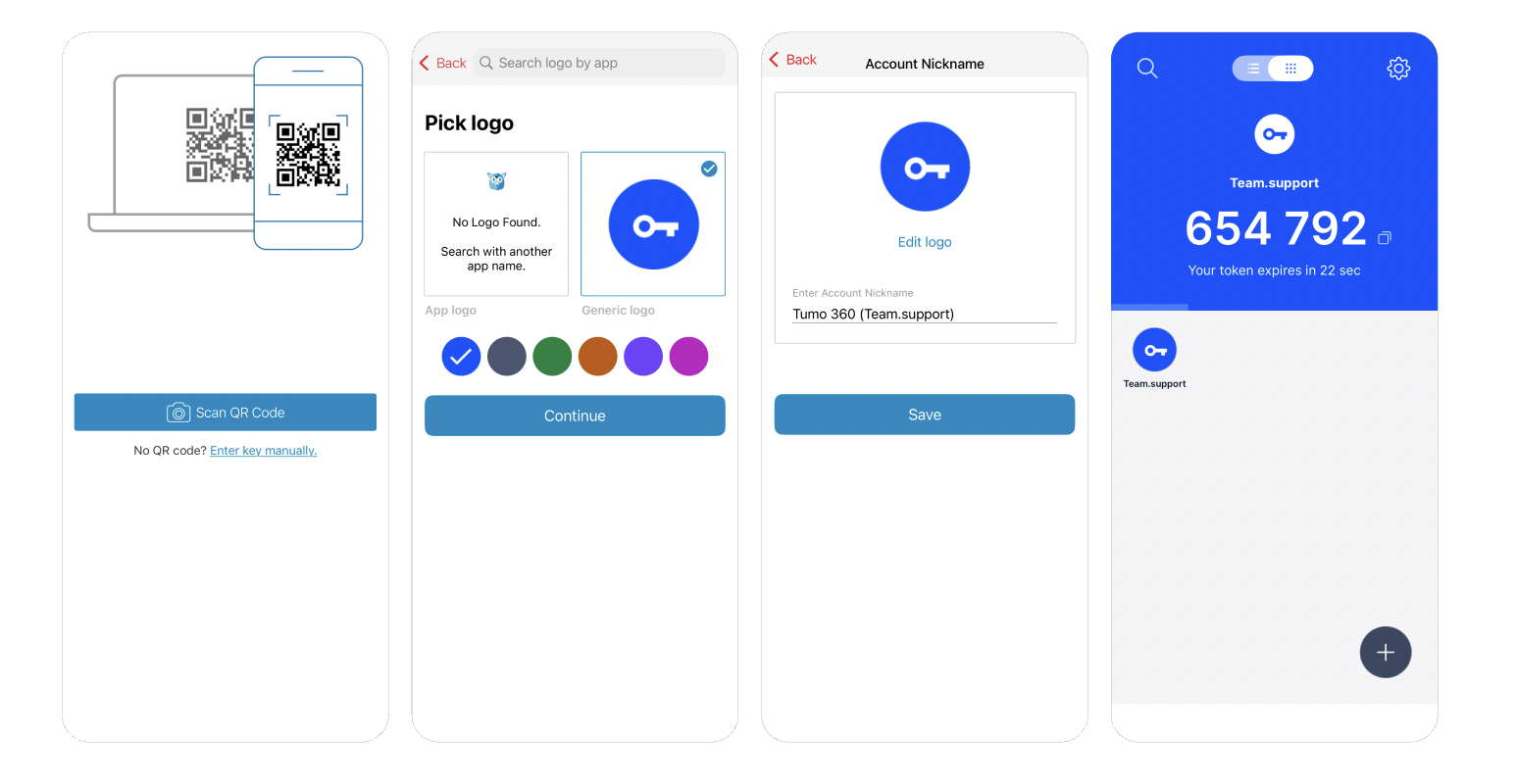
- Download an Authenticator App
- Choose and download an authenticator app from your device’s app store. Popular options include Authy, Google Authenticator, and Microsoft Authenticator.
- Add Your Account to the App
- In T360, when you enter your credentials to log in, the system will prompt you to scan a QR code using your authenticator app.
- Alternatively, you can manually enter the code displayed below the QR code into your app.
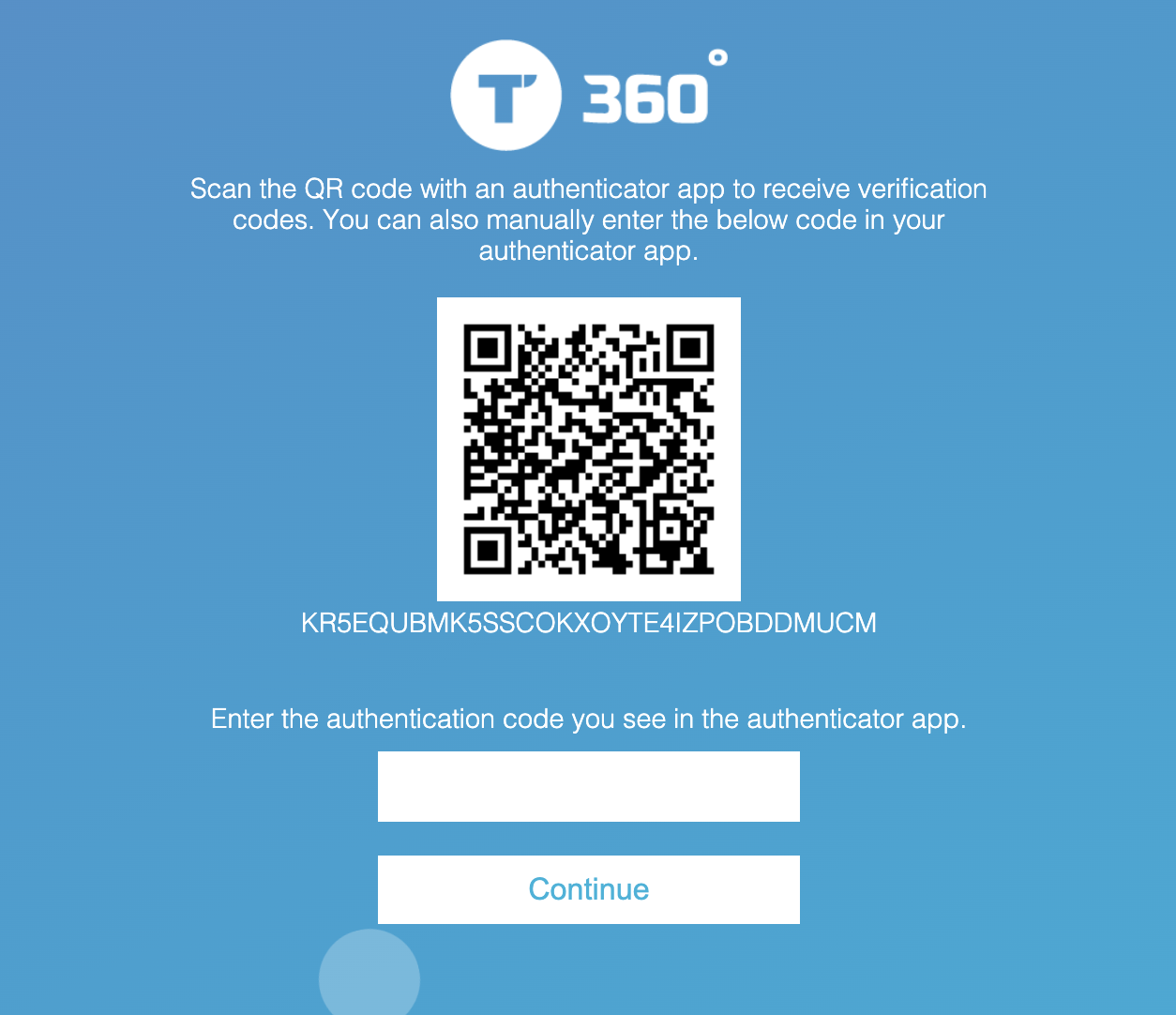
- Scan the QR Code
- Open your authenticator app and scan the QR code. The app will start generating codes that refresh every 30 seconds.
- Enter the 6-Digit Code
- Input the 6-digit code generated by the app and click Continue. The code refreshes every 30 seconds.
- Save Your Backup Code
- After successful login, the system will provide a backup code.
- Backup codes are one-time-use codes for situations where your primary authentication method (phone or computer) is unavailable.
- Keep backup codes in a safe place and use them only in emergencies.
Congratulations! You have successfully enabled 2FA using an authenticator app. Going forward, you’ll need to enter a code from the app whenever you log in to verify your identity.
Common Troubleshooting Cases for 2FA
Code Not Working. If the generated code doesn’t work, wait a few seconds for a new code.
Ensure the code is entered correctly and hasn’t expired (codes are time-sensitive).
QR Code Not Scanning. If scanning fails, manually enter the code into your authenticator app. You can also try zooming in/out on the QR code.
Time Sync Issue. Authenticator apps rely on your phone’s clock to generate valid codes. If your clock is incorrect, go to your phone’s settings and enable automatic date and time.
If you are logged out from your account:
- In this case, you should use the backup code that you saved during the setup process to regain access to your account.
- Note that you can use the code only once.
- If you've lost both your phone and backup code, contact the support agents via the Freshdesk to assist you.
If you are still logged in on any device:
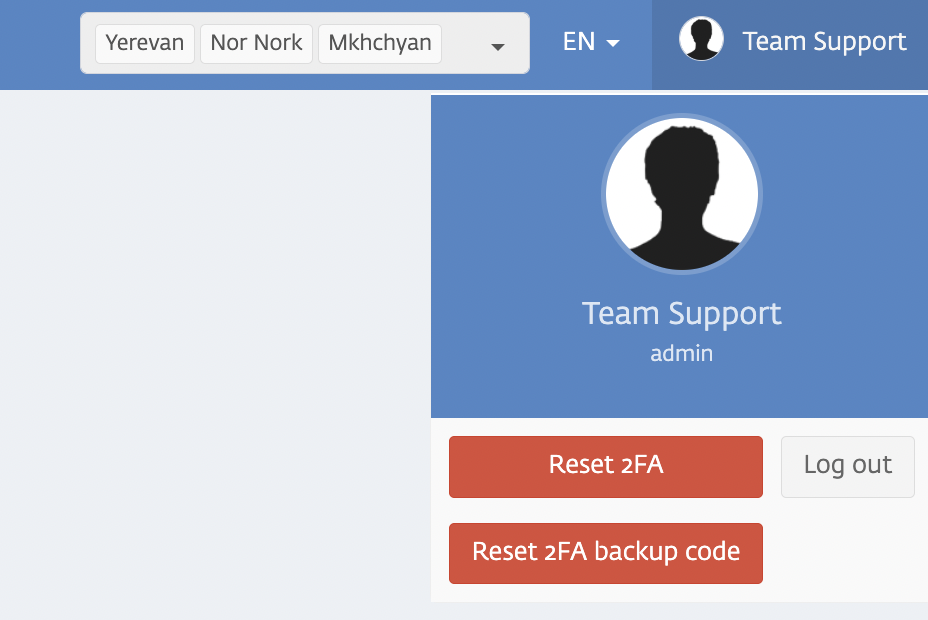
- You can reset your 2FA app.
By doing so, you need to re-establish 2FA on your account with the new authenticator app. - You can also reset your Backup code if you lost it and save the new one.
Handling Most Common Issues
Changing Phones
If a staff member changes their phone, it is necessary to reset 2FA in T360 and set up the authenticator app again on the new device. This ensures uninterrupted access to the system and prevents login issues.