
 The Coach Tool is a feature-rich addition to our educational product, designed to facilitate seamless communication and provide valuable insights for both coaches and students. Coaches can leverage the Coach Tool to efficiently organize and manage their follow-ups with students. This article outlines the functionalities and capabilities of the Coach Tool, providing users with a comprehensive understanding of its features.
Before You Begin
Ensure that you have an active T360 account and the necessary access permissions.
Coach and Session Selection
Start by selecting a coach from the "Coach" dropdown. Once the coach is selected, the "Sessions" dropdown is dynamically populated with sessions assigned to that specific coach. This intuitive approach allows a personalized view for each coach.
Student Information Table
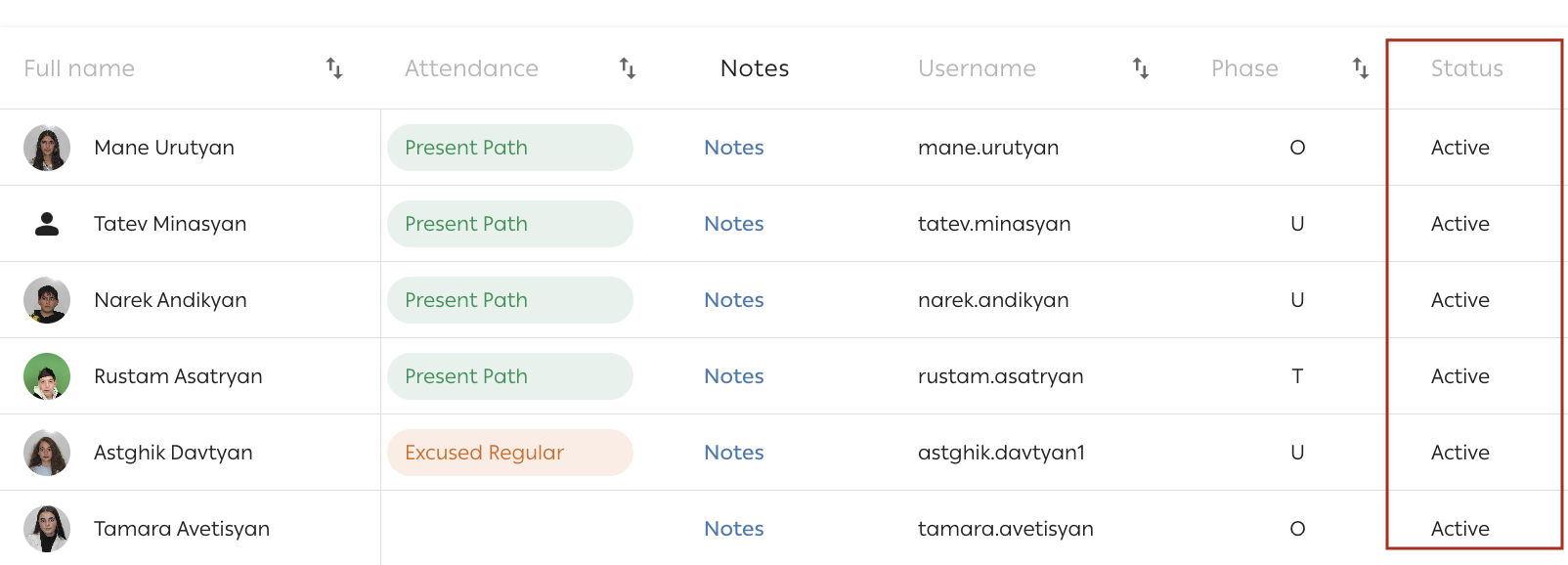
The system automatically populates a table with essential student details, including:
- Avatar
- Full Name
- Username
- Attendance
- Notes
- Phase (not available at all centers)
- Status
- Stage
- Ongoing and Upcoming Events
- Prerequisites
- Locked Activities (not available at all centers)
- Coach Update Date
- Last Activity Submitted
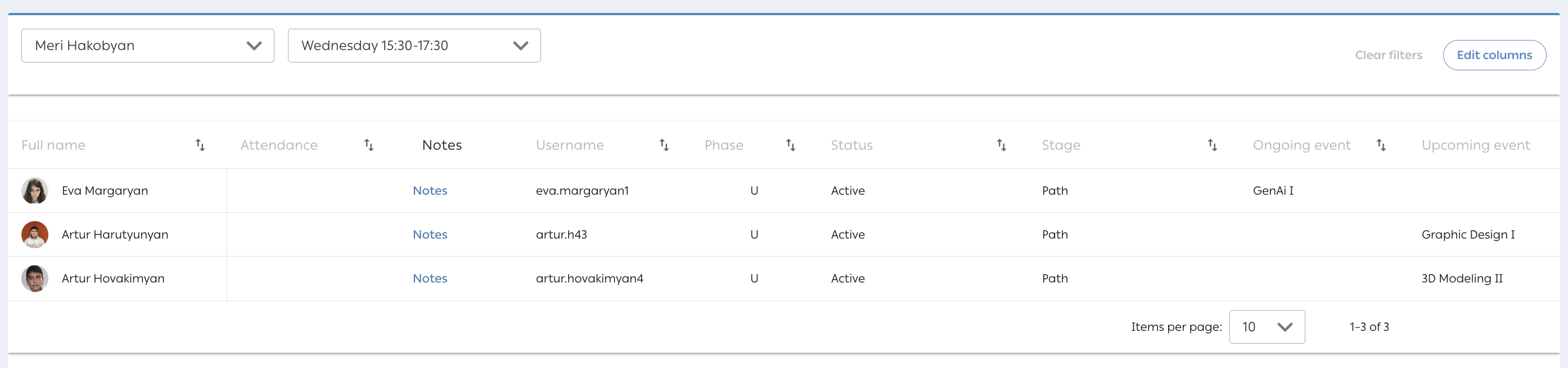
Customization
You can select and rearrange table columns according to your preferences to optimize the display and prioritize the information you need.
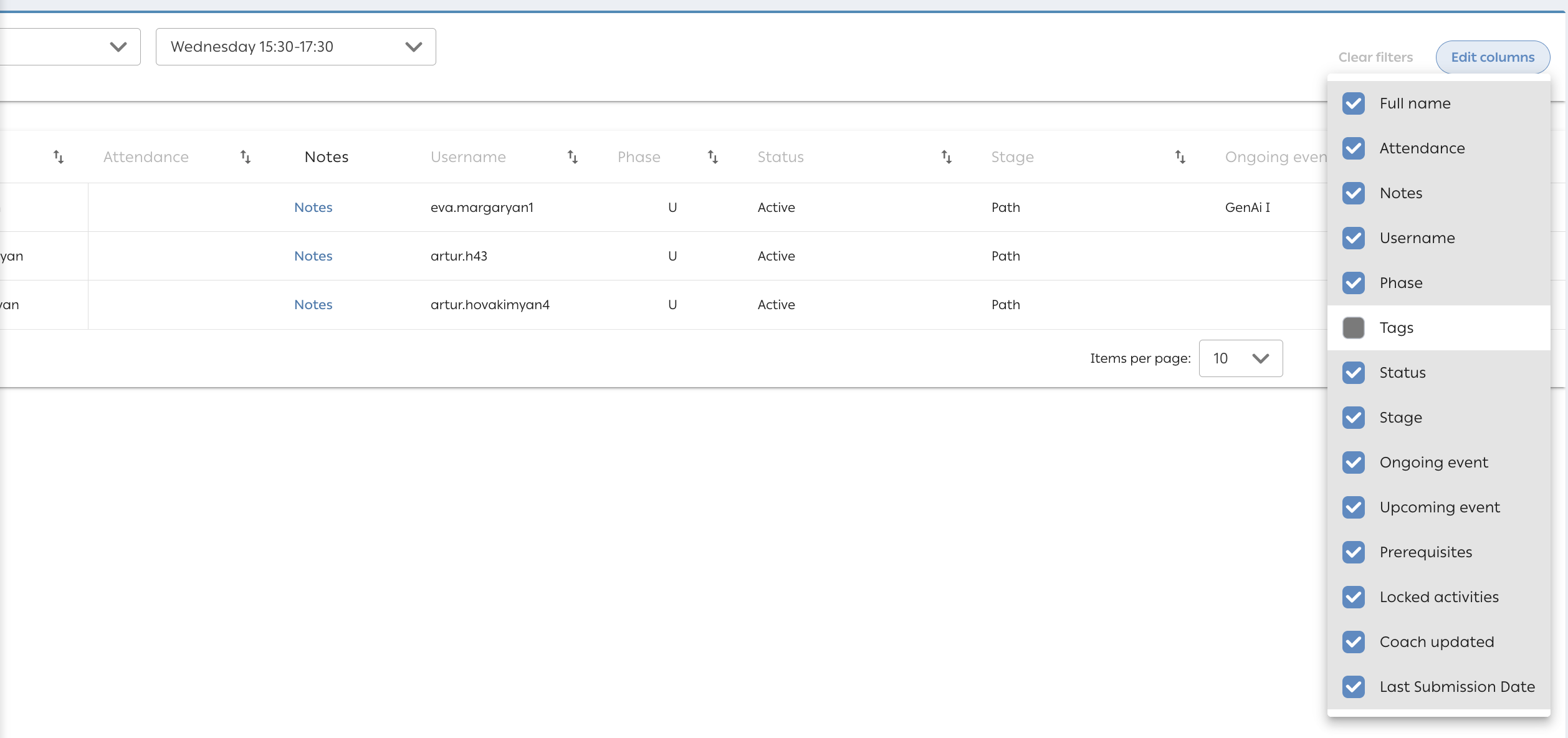
Attendance Monitoring
Gain real-time insights into student attendance, distinguishing between Path attendance and Event attendance. Present students in ongoing sessions are highlighted at the top of the list.
Note: Attendance information reflects the current week.
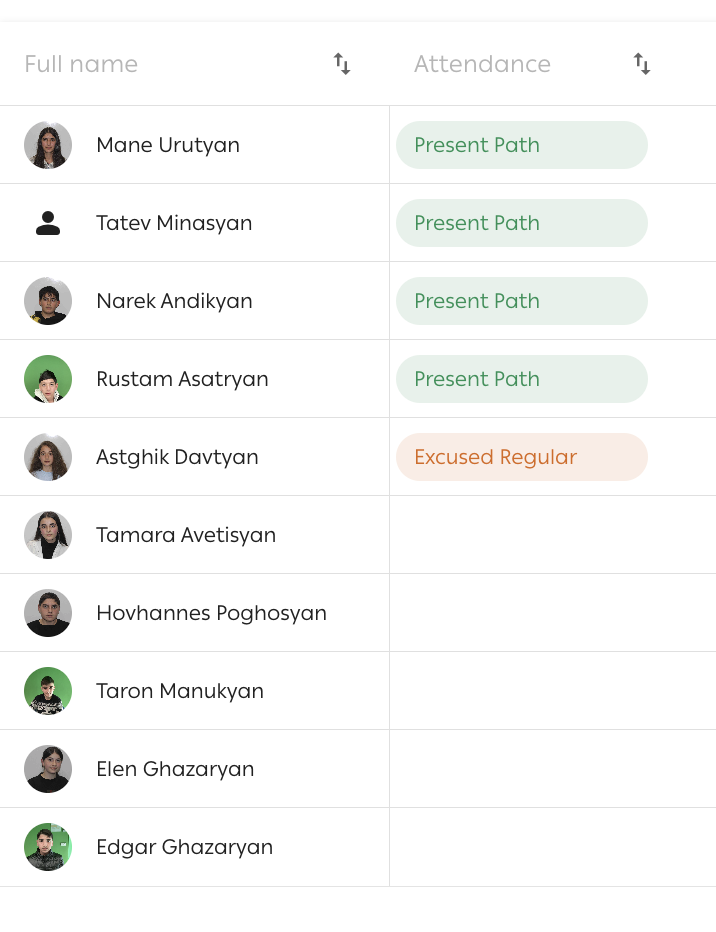
Notes:Coaches can leave notes about a student in the Coach Tool by selecting the appropriate type.
- Notes can be saved as a draft, allowing coaches to edit or delete them later.
- Once finalized, notes can be added to the student’s record.
- Coaches can also view previously written notes and drafts, providing additional context and insights about the student.
This feature helps coaches track important information and monitor student progress beyond attendance data.
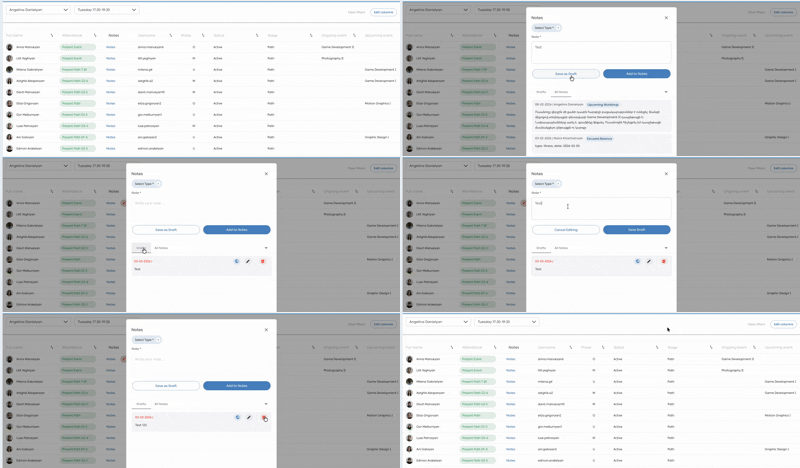
Status and Stage Tracking
Track each student’s status and stage with clear visual indicators.
Event Management
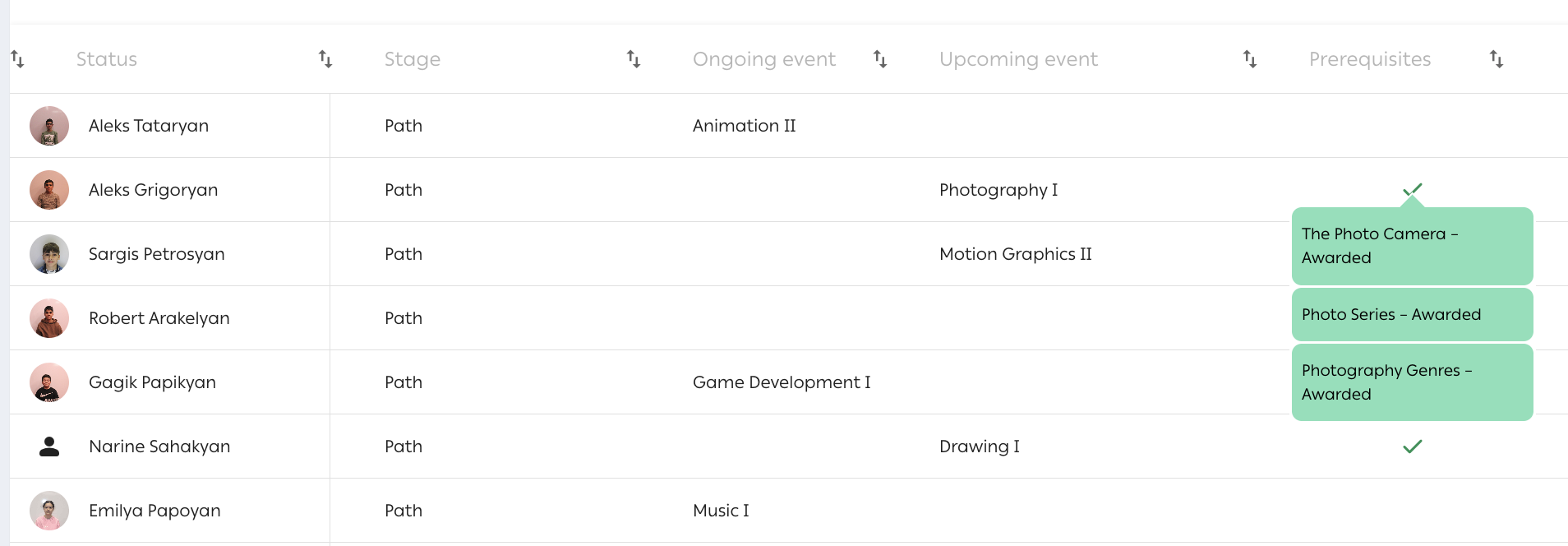
Stay informed about ongoing and upcoming events (permanent events starting in the next cycle) for each student, including prerequisites and completion status.
Locked Activities
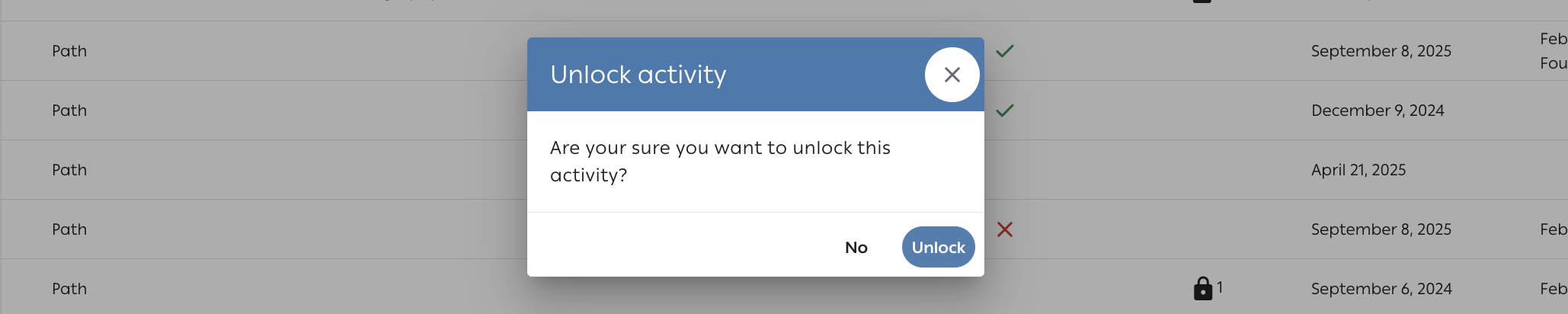
Monitor the number of activities locked as "rejected" three times or more, and unlock them easily. This feature ensures smoother progress and easier activity management.

Students Overview:
Students see locked activities in TUMO World as follows. Until the coach unlocks the activity, the student cannot continue or attempt the activity again.
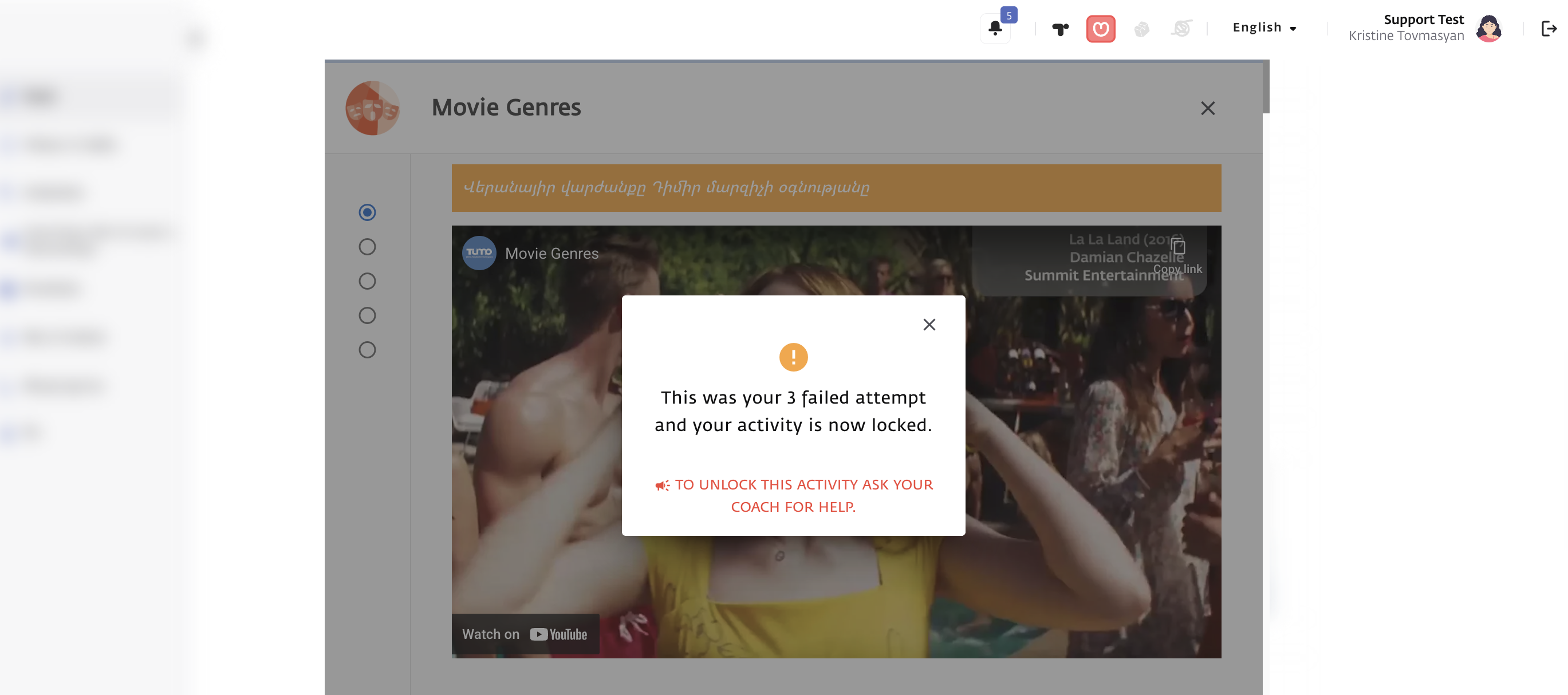
See more about locked activities from the student perspective here.
Coach Update Date
Keep track of newly assigned students and updates relevant to the coaching process.

Handling Common Issues
No other frequent issues have been identified for this workflow. If you encounter any problem, please contact TUMO Product Support.