

This article provides a step-by-step guide for creating a Path Vacation in T360. For a detailed explanation of the difference between Path Vacations and Non-Working Days, please refer to “Non-Working Days and Path Vacations in T360”.
Before You Begin
Please ensure that you have the appropriate role permissions to access the following pages:
(At this time, only users assigned the Center Manager and Admin roles have access to these pages.)
Without the required permissions, the pages may not be accessible, and any changes made will not be saved or applied.
Accessing the Path Vacation Page
- In T360, navigate to: System → Tools → Path Vacations
Configuring a Path Vacation
- Location: Select the center or location for which the Path Vacation will apply.
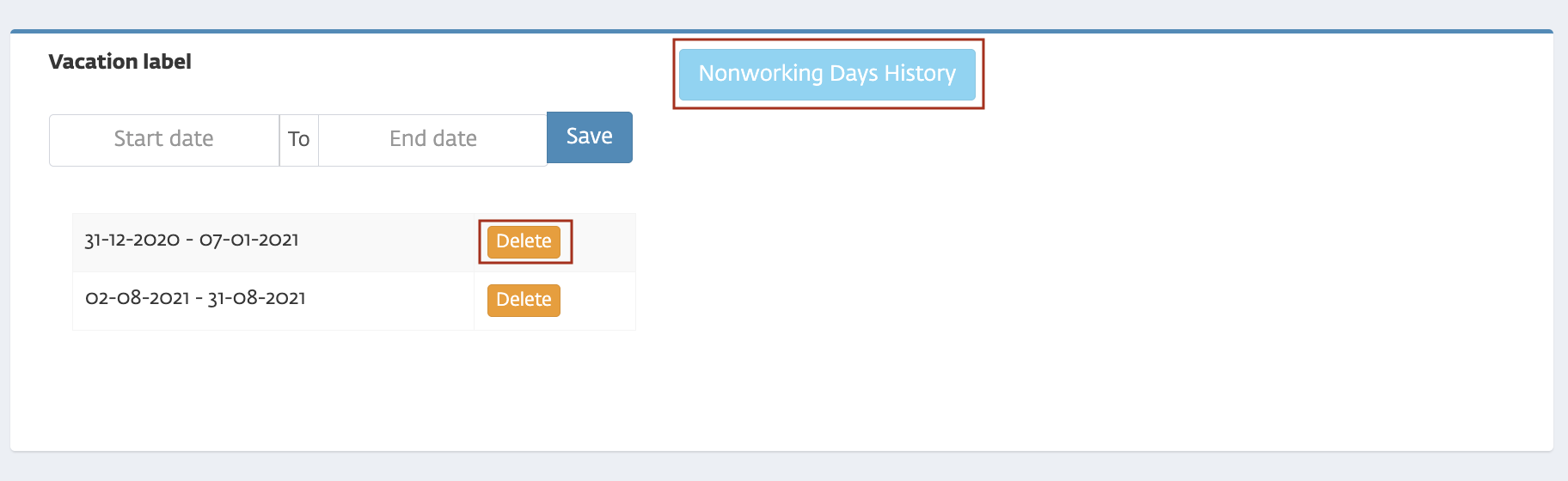
- Start Date and End Date: Specify the duration of the Path Vacation.
- Click Save to apply the Path Vacation.
- The Path Vacation History for the center will be displayed at the top of the page.
Important Tip: Path Vacations can be deleted if necessary, but they cannot be edited once created.
Key Consideration: Only events generated after the Path Vacation has been added will reflect the updated workshop schedule correctly. Path Vacations do not affect events that were already generated prior to their creation.
Handling Common Issues
The main consideration with this workflow is that if a Path Vacation is added after events have already been generated, it will not apply retroactively. The workshop schedule will only pause for events created after the Path Vacation has been added.
If any issues arise, please contact TUMO Product Support.