

This article provides step-by-step guidance on how to create a Non-Working Day in T360.
Before You Begin
Please ensure that you have the appropriate role permissions to access the following pages:
(At this time, only users assigned the Center Manager and Admin roles have access to these pages.)
Without the required permissions, the pages may not be accessible, and any changes made will not be saved or applied.
Accessing the Non-Working Day Page
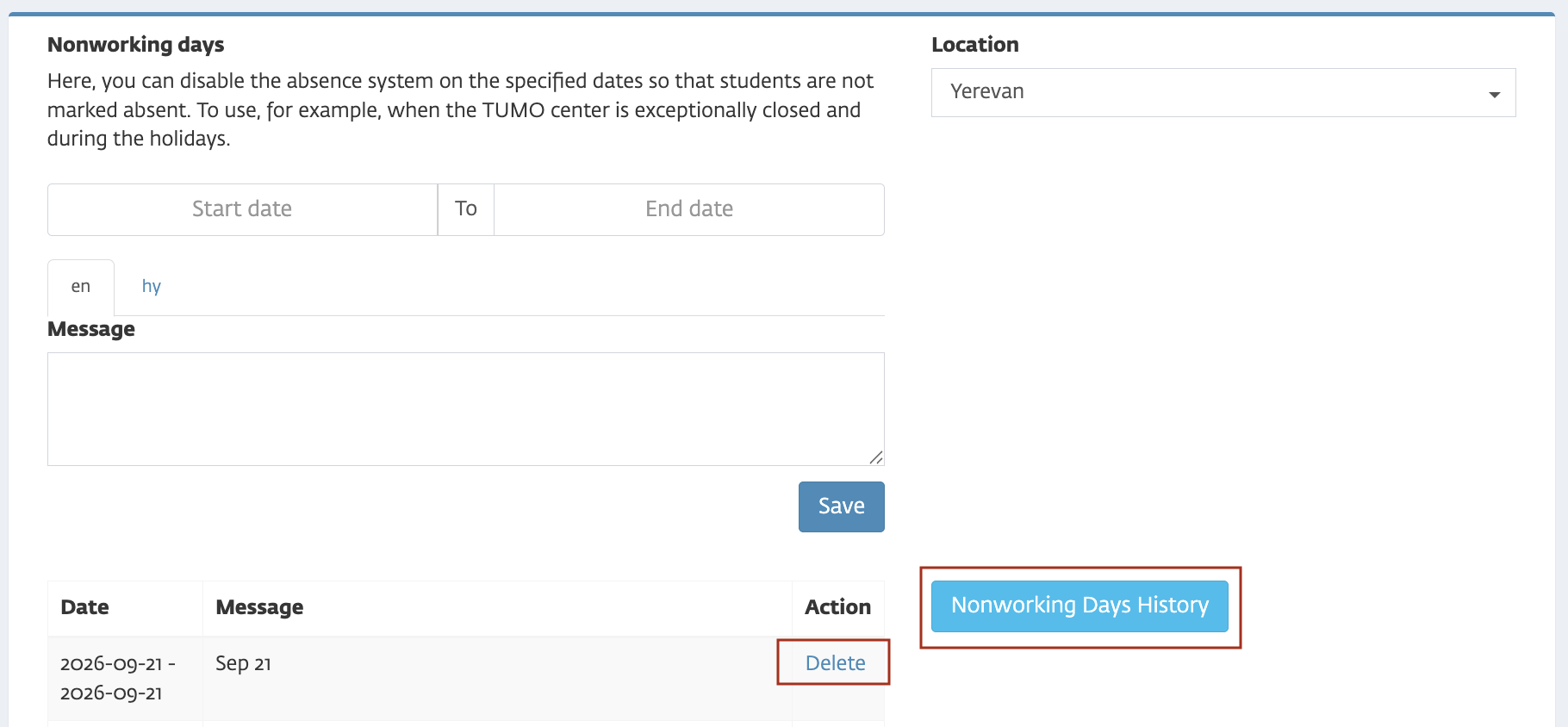
- In T360, navigate to: System → Tools → Non-Working Days.
Configuring a Non-Working Day
- Location: Select the center or location where the Non-Working Day will apply.
- Start Date and End Date:
- If the Non-Working Day is a single day, only enter the Start Date.
- If it spans multiple days, enter both the Start Date and End Date.
- Message: Provide a description or note for the Non-Working Day in all available languages.
- Click Save to apply the Non-Working Day.
Important Tip: A Non-Working Day can be deleted, but it cannot be edited once created. On the right side of the page, you can view the Non-Working Days History for your center.
How Non-Working Days Are Reflected to Students
When a student attempts to log in to TUMO on a Non-Working Day, the system will indicate that the center is closed for the day. The student will see one of the following:
- Default message (if no custom message was entered):
"Sorry, today is a Non-Working Day. Please try to login to your next session."
- Custom message (if a message was entered in the Message field when creating the Non-Working Day):
The system will display the custom message instead of the default.
This ensures that students are immediately informed that no sessions, events, or workshops are available for that day, preventing any confusion or unnecessary login attempts.