
 When a staff member leaves a center, it is important to properly close their account in T360. Additionally, if necessary, their linked Google account can be disabled or deleted. This guide provides step-by-step instructions for both actions.
Before You Begin
Ensure you are logged into T360 using your staff account.
Verify that your user role grants access to staff profile termination and Other Accounts management.
Step-by-Step Guide: Closing a Staff Account
Navigate to Staff → Staff List in T360.
Use the search function to locate the staff member (e.g., by username).
Click on the account to open the staff overview page.
Go to the Termination tab.
Change the status from Active to Terminated.
Click Update.
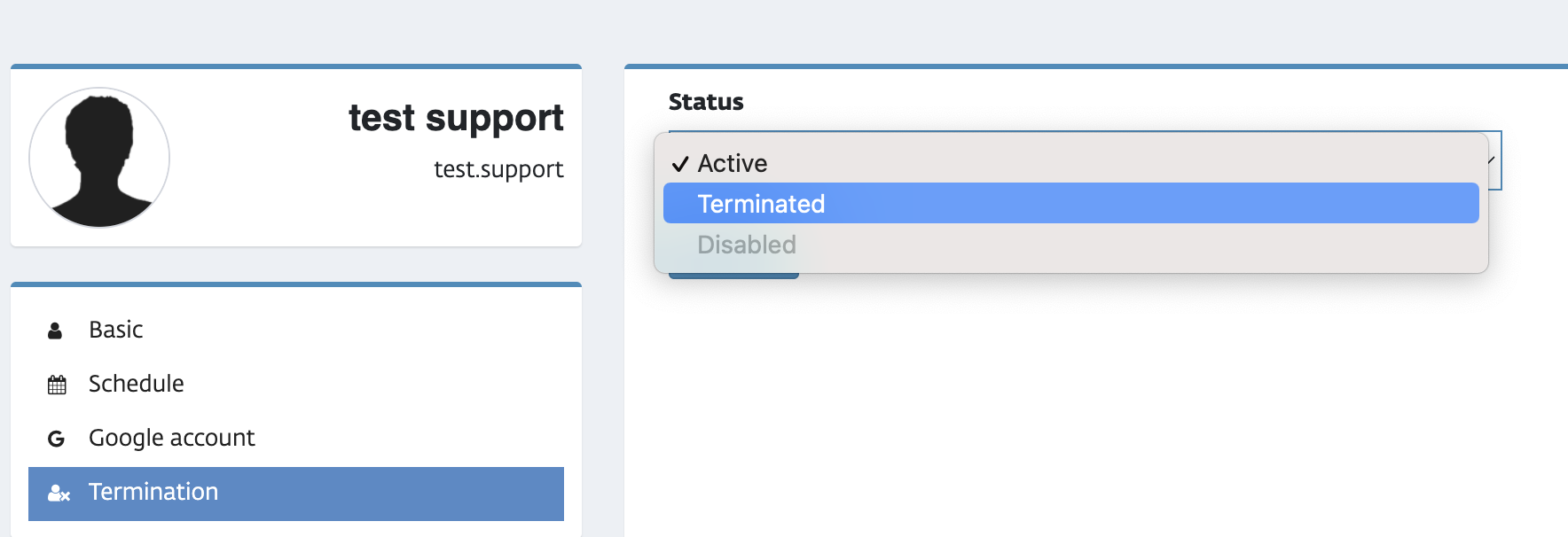
✅ Once terminated, the user loses access to T360.
Handling Linked Google Accounts
Do Google Accounts Close Automatically?
No. Terminating a T360 account does not automatically affect the staff member’s Google (Gmail) account.
How to Disable or Delete a Staff Gmail Account
Open the staff member’s T360 profile.
Navigate to the Other Accounts tab.
Under the Google Account section, select Delete or Disable.
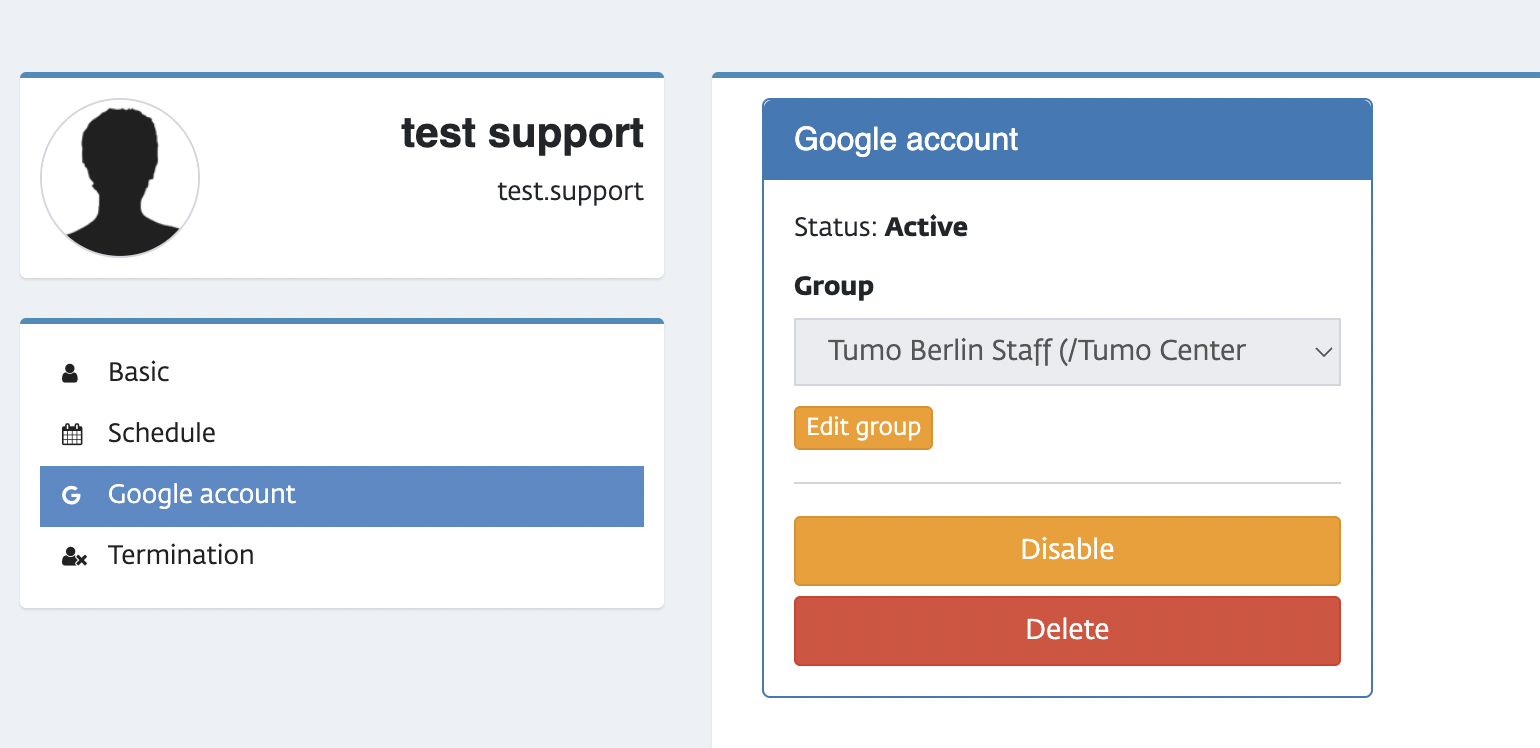
⚠️ Before deleting accounts, ensure that no important data will be lost.
Handling Most Common Issues
No frequent issues have been detected with this workflow. If you encounter a problem, please contact TUMO Product Support.