

During Self-Learning sessions, students complete activities on the TUMO World platform. Each submitted activity (submission) is later reviewed and evaluated in the Activity Manager by the Workshop Lead.
After evaluation, an activity may receive one of the following statuses:
- Awarded – the activity has been successfully completed and accepted.
- Rejected – the activity did not meet the required criteria.
When a student submits an activity, its initial status becomes Examining, which indicates that the submission is waiting to be reviewed.
Once the activity is evaluated in Activity Manager by the Workshop Lead:
- If the activity meets the required criteria and is approved, the status changes to Done.
- If the activity requires revisions or corrections, the status changes to Redo, meaning the student must review the feedback and submit the activity again.
If a student receives Rejected on the same activity three times, the activity becomes Locked. It will appear under the Locked filter in Activity Manager. Until the Workshop Lead unlocks the activity, the student cannot resubmit or attempt it again.
Activity Manager: Viewing and Unlocking Locked Activities
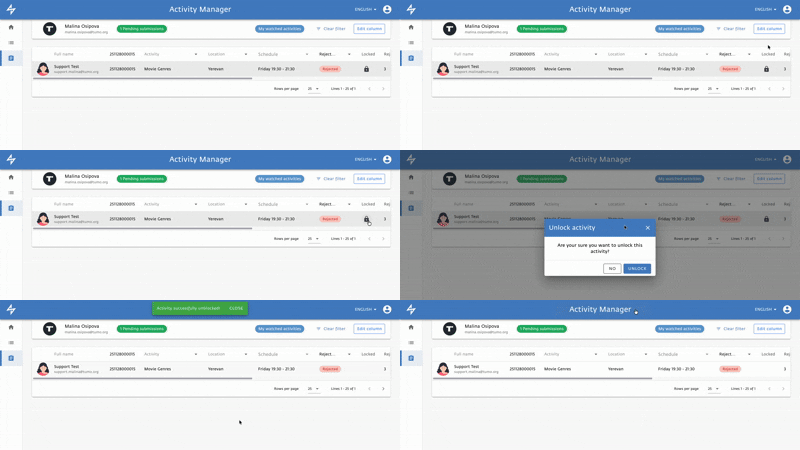
Before You Begin
- Ensure that you have an active T360 account.
- Verify that your User Role grants you permission to evaluate student activity submissions.
Step-by-Step Guide: How to Evaluate Activities
- Accessing the Examination List
- In T360, navigate to Activity Manager → Go to Examination List.
- Viewing Student Submissions
- You will see a complete list of all activities submitted by students.
- The system automatically populates a table with key student information, including:
- Avatar
- Full Name
- TUMO ID
- Activity
- Location
- Schedule
- Locked
- Activity Status (Pending, Rejected, Awarded)
- Rejected Count (shows how many times this activity has been rejected)
- Submission Date / Evaluation Date
- Skills
- Customizing the Table
- Use Edit Column to select and rearrange table columns according to your preferences, prioritizing the most important information.
- To remove all applied filters, use Clear Filter.
- Selecting an Activity
- Click on any activity you need to evaluate.
- Evaluating Activity Components
- Review each activity component and select Award or Reject, choosing an appropriate criterion or providing custom feedback if needed.
- Important Tip: You can view the student’s previous submissions and past examiner feedback on the right side of each component.
- Finalizing the Evaluation
- Once all components of the activity have been assessed, leave final feedback and evaluate the entire activity in the Final Result field.
- This will update the activity try status to Awarded or Rejected.
- Saving and Moving to the Next Activity
- After evaluating all components and submitting final feedback, click Save and Next to save your evaluation and proceed to the next activity.
Important Tip: If a given activity is currently being evaluated by another examiner, it will appear as Locked in Activity Manager.

Video Tutorial