
 When new staff members join TUMO, they need access to our systems to perform their daily tasks. This guide covers both registering a new staff member and setting up their initial password.
Before we go on
- Ensure you are logged in to T360 with your own staff account.
- Verify that your User Role allows you to register new staff and modify their profile data.
Let's go through the steps
Register a New Staff Member
- Navigate to Staff > Register.
- Fill in Name and Surname in all supported languages.
- Complete all required fields:
- Name, Surname
- Birth Date, Location, Location Permission
- Username: Recommended format is
firstname.lastname(used for both T360 and Gmail accounts).
- Assign the staff member’s Roles to define system access.
- 2FA Status: Default is selected; only change if necessary.
- Click Save.
✅ The T360 account is now created.
Video Tutorial
Finalize Setup: Linked Gmail & One-Time Password
Now, it's time to finalize the setup by creating a linked Staff Gmail account, which is later used for resetting the T360 account password and two-factor authentication (2FA), and then providing both Gmail and T360 account credentials to the new staff user.
To set a one-time password (only newly registered staff members need a one-time password) and activate a linked Gmail account, follow these steps:
- Open the newly registered staff T360 profile page.
- On the profile’s Basic page, click Change password.
- Enter a one-time password for the T360 account (the user will later have the option to change it).
- Minimum 8 characters: uppercase, lowercase, symbols, numbers
- Cannot match previous password or contain "Tumo" or username
- Navigate to Other Accounts page.
- Copy the Gmail password automatically generated by the system.
- Select the email group and click Create.
- Add a schedule from the Schedule page (optional for some roles, required for coaches).
✅ Accounts are now fully set up.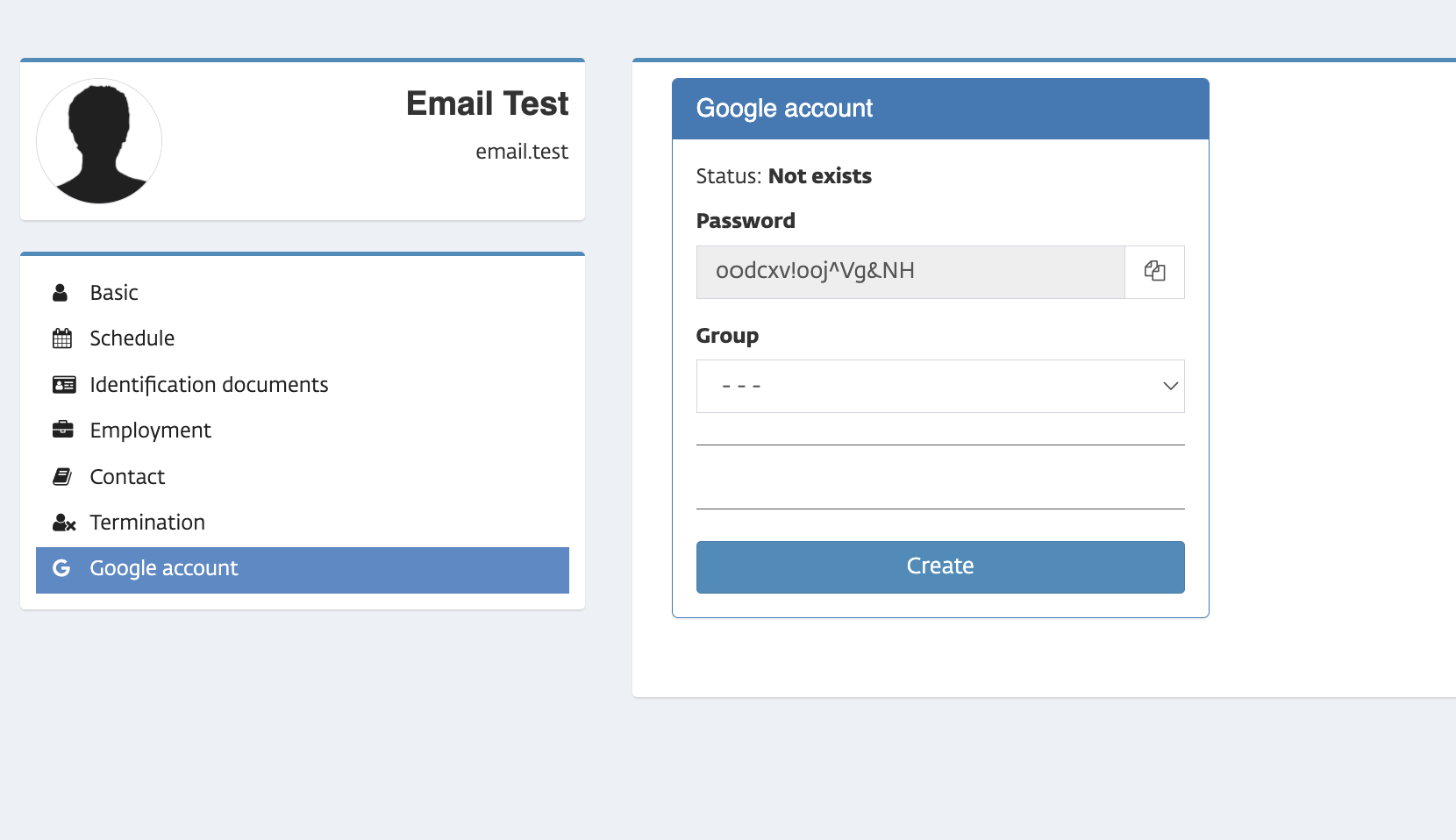
Now accounts are fully set up!
Password Reset for Registered Staff Members
It is time to securely provide the T360 account and Gmail account credentials to the new staff member along with the reset password instructions below.
- Go to the T360 login page.
- Enter your username and the one-time password provided, then click Login.
- On the password reset page, re-enter your username for confirmation.
- A reset link will be sent to your linked Gmail account (may take up to 10 minutes).
- Log in to your TUMO Gmail account using the provided username and password.
- Open the email containing the reset link and click the link to access the password reset page.
- Enter your new password for T360 and confirm it.
- Log in to T360 using your username and new password.
- As a security measure, change your Gmail account password as well.
✅ T360 and Gmail passwords are now updated and secure.
By following these steps, one can successfully reset the T360 password, thereby strengthening the security of the associated accounts.
Video Tutorial
Handling Most Common Issues
"I made a mistake in staff member details."
Solution: It is easily edited if you go to “Staff”, then “List”, then choose the account you want to edit.
"Google account is created before the T360 account."
Issue: This causes mismatched emails between Google and T360 accounts. The correct flow is to always create the T360 account first, then generate the Google account from T360. If this happens, it must be fixed by Support via database correction.
No other frequent issues have been detected with this workflow. If You detect a problem, please apply to TUMO Product support.